Azure DevOps Services | Azure DevOps Server | Azure DevOps Server 2022
Get answers to common questions about creating and managing test plans, test cases, test suites, permissions and access levels, running manual and automated tests, test configurations, tracking charts, test data retention, and the Test & Feedback extension in Azure Test Plans.
For step-by-step guidance, see the following articles:
Permissions and access
What access level do I need to use Azure Test Plans?
Azure Test Plans uses three access levels:
- Stakeholder: Can provide feedback through the Test & Feedback extension but can't access the Test Plans portal.
- Basic: Can execute test cases, mark test outcomes, and view charts and reports.
- Basic + Test Plans: Full capabilities, including creating and managing test plans, test suites, test cases, configurations, and parameters. Visual Studio Enterprise, Visual Studio Test Professional, and MSDN Platforms subscriptions include equivalent access.
For the complete permissions matrix, see Manual test access and permissions.
Why can't I see the Define tab in Test Plans?
The Define tab is only available to users with Basic + Test Plans access or equivalent. Users with Basic access can use the Execute and Chart tabs but can't author or manage test cases through the Define tab. To get access, ask your admin to assign you the Basic + Test Plans access level.
Test plans and test suites
What's the difference between static, requirement-based, and query-based test suites?
Azure Test Plans supports three types of test suites:
- Static test suites: Manually organize test cases into groups. Use static suites when you want to hand-pick which test cases belong together.
- Requirement-based test suites: Automatically link test cases to backlog items (user stories, product backlog items). Use requirement-based suites to track test coverage against requirements — this suite type is the only way to support end-to-end requirement traceability.
- Query-based test suites: Automatically populate test cases based on a work item query (for example, all test cases with Priority=1). The suite updates whenever the query results change.
For more information, see Test objects and terms.
Can I copy or clone test plans and test suites?
Yes. Depending on your desired action, you can copy or clone test plans and import or clone test suites. To learn how, see Copy or clone test plans, test suites, and test cases.
Note
- You can export a maximum of 75 test suites in a single operation. The email supports up to 1 MB of data.
- You can't export test plan attachments.
Can I just view test plan data I export, or copy it to a Word document?
Yes. Select Print in the Export dialog box, then choose Cancel in the Print dialog box to display the data in the report. Select all the text and copy it into a Word document. The report formatting is retained.
What happens when I delete a test case from a requirement-based test suite?
The test case still exists in your project but is removed from the test suite and no longer linked to the backlog item for that suite.
Why do I see the wrong test suite and tests when I select View Tests from the notification email about tests that are assigned to me?
This issue can occur if you're prompted to enter credentials when you select the link. Without signing out of Azure DevOps, select View Tests again to see the correct test suite and tests.
How do I find and navigate test plans?
In Test Plans, use the directory to find your test plans:
- Mine: Shows test plans for teams you belong to, plus your favorites. Plans are grouped by team.
- All: Shows all test plans in the project. You can add plans to favorites from this view.
Use the filter controls to search by name, team, state, or iteration. For more information, see Navigate Test Plans.
Test cases
Can I copy test cases from one project to another?
Yes. See Copy test cases.
Can I add an extra line to a test step?
Yes. Press Shift+Enter in the action or expected results field to add an extra line.
How do I insert a test step into a test case?
Select a test step. Press Alt+P to insert a new test step above the selected step.
How can I find out if a test case was added to other test suites?
Select a test case in the Define tab. Right-click or select More options to open the context menu, and then select View linked items.
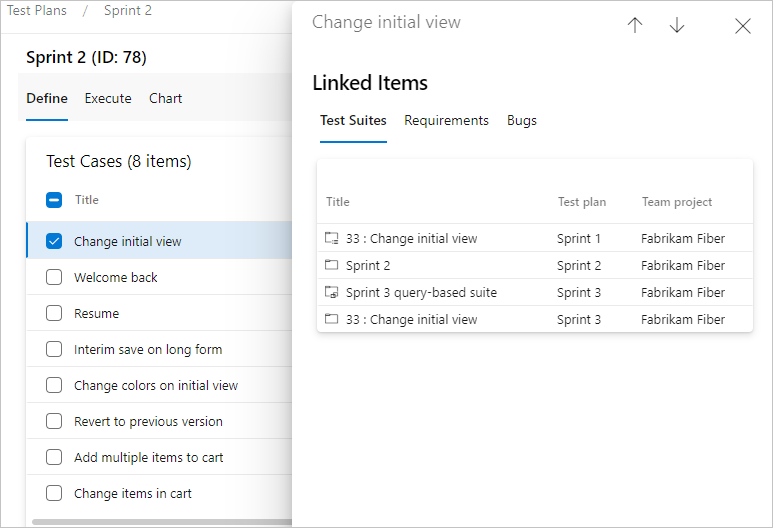
In the Linked Items dialog box, select Test Suites to see the test suites linked to the test case. Double-click a test suite to open it.
How do I delete a test case or other test artifacts?
How do I bulk import or export test cases?
You can import and export test cases in bulk using CSV or XLSX files. Import lets you create new test cases or update existing ones (by including test case IDs). Export lets you download test case details, including custom columns.
For step-by-step instructions, see Bulk import and export test cases.
Note
The enhanced import wizard with field mapping review, reusable mapping templates, and multi-sheet selection is available in Azure DevOps Services only. On Azure DevOps Server, the import wizard imports the file directly without a mapping review step.
Can I create new test cases and update existing ones in the same import file?
Yes. In the same CSV or XLSX file, leave the ID field empty for new test cases and include the existing ID for updates.
How do I identify and resolve import errors?
The import wizard validates your file at each stage — file upload, field mapping, and before final import. It displays errors inline and you must resolve them before the import can proceed.
Common errors and solutions:
| Error | Solution |
|---|---|
| Missing mandatory headers | Add the required column headers with exact spelling. |
| Invalid field value found | Check that Work Item Type is exactly Test Case, State is Design, Area Path matches an existing path, Assigned To is a valid user, and Test Step is a number. |
| Invalid data formats | Check date formats, numeric values, and text length limits. |
| Incorrect field mappings | Verify that columns map to the correct Azure DevOps fields. |
| Empty required fields | Ensure all mandatory fields contain valid data. |
To fix errors, correct your CSV or XLSX file, reupload it, and complete the import.
What work item types does test case import support?
The import process supports only Test Case work items. To reference existing shared steps, include their ID in your file. The import can't create new shared steps — create them in the web interface first, then reference their ID.
Note
If you include both a shared step reference and step details in the same row, the import updates the shared steps work item. To reference shared steps without modifying them, omit step details.
For other work item types (User Stories, Tasks, Bugs), see Bulk import or update (CSV).
What are the mandatory headers for test case import files?
Include the following nine headers with exact spelling:
| Header | Description |
|---|---|
| ID | Leave blank for new test cases; provide existing ID for updates. |
| Work Item Type | Must be Test Case. |
| Title | Test case name. |
| Test Step | Order number for each step. |
| Step Action | Actions the tester performs. |
| Step Expected | Expected result after the action. |
| Area Path | Must match an existing area path (for example, MyProject\MyArea). |
| Assigned To | Valid user in your organization. |
| State | Must be Design. |
Can I undo a bulk test case import?
There's no single-action undo. However, each import creates a revision for every affected test case. View the History tab on individual test cases to see what changed and manually revert fields. For large-scale rollbacks, reimport the original exported file.
What are the limitations for test case import or export?
The following limitations apply:
- Test cases must be in Design state during import.
- Test case titles can't exceed 128 characters.
- Import and export files have a 20-MB size limit.
- You must have permissions for the area and iteration paths of the target test plan and test suite.
- Operations fail if a test case has more than 1,000 related links.
What are shared steps and how do I use them?
Shared steps let you define a reusable sequence of test steps (such as a common sign-in flow) that can be referenced by multiple test cases. When you update shared steps, the changes automatically apply to all test cases that use them.
To create shared steps, select one or more steps in a test case, then choose the Create shared steps icon. For more information, see Share steps between test cases.
Running tests
What's the difference between a test case and a test point?
You execute test points, not test cases directly. A test point is a unique combination of a test case, test suite, configuration, and tester. For example, if a test case is assigned two browser configurations (Chrome and Edge), that creates two test points — one for each configuration. The Execute tab shows the latest execution result for each test point.
What test runner options are available?
When you run tests from the Execute tab, you can choose from the following runners:
- Web browser-based runner: Runs manual tests in the browser. You can optionally select a specific build to associate results with.
- Test Runner client (desktop): A desktop application for testing desktop applications.
- Automated tests using a release stage: Triggers automated test execution from a build and release pipeline.
For more information, see Run manual tests.
Is the desktop Test Runner client being retired?
Yes. The Test Runner Client for Windows is scheduled for retirement. After the retirement date, it will no longer be available or supported. Transition to the web-based test runner, which provides the same functionality with improved performance and ongoing development.
For more information, see Run manual tests.
What diagnostic data can I collect during a test run?
During a manual test run, you can collect the following diagnostic data:
- Screen captures: Take annotated screenshots during test execution.
- Image action log: Automatically captures your interactions with the application as a step-by-step visual log.
- Screen recordings: Record your screen during testing. Recordings auto-stop after 10 minutes.
For more information, see Collect diagnostic data while testing.
Test status tracking charts
How is data shown in the charts for test cases that are in multiple test suites?
For test case charts, if a test case gets added to multiple test suites in a plan, then the test only gets counted once. For test result charts, each instance of a test that is run is counted for each of the test suites separately.
Who can create charts?
To create charts, you need to be assigned at least Basic access.
How can I edit or delete a chart?
Choose  Configure and the option you want from the chart's context menu.

What are the limitations of the Progress Report?
The Progress Report has the following limitations:
- Shows data for one or more test plans in a single project only. For cross-project reporting, use OData APIs.
- Data updates approximately every 15 minutes and isn't real-time.
- Percentage values don't display decimal places.
- Outcomes like Blocked and Not Applicable aren't reflected in Passed% or Failed%, which can show a gap between Run% and the sum of Passed% and Failed%.
- Data from test plans migrated from on-premises Azure DevOps Server doesn't appear.
For more information, see Progress Report.
Test configurations
Are parameters the best way to specify that the test should be run on different operating system platforms? And with different browsers, databases, and so on?
It's better to use test configurations. With test case parameters, you run the different parameter values one after another, which makes it difficult to switch from one platform to another. For more information, see Test different configurations.
What permissions do I need to manage test configurations?
You need the project-level Manage test configurations permission set to Allow. By default, this permission is granted to members of the Contributors and Project Administrator groups.
What happens when I change configurations on a child test suite?
Warning
Changing configurations at a child suite breaks inheritance from its parent suites while still propagating to lower child suites, unless inheritance is already broken. Unassigning configurations hides the related test points. You can restore them by reassigning the configuration.
Automated testing
How do I associate automated tests with test cases?
You can associate automated test methods with test case work items so that you can run them from Test Plans. In Visual Studio, open Test Explorer, select a test method, and choose Associate to Test Case. You can also associate tests through a build pipeline in Azure DevOps.
Note
- A single test method can be associated with multiple test cases, but each test case can only be associated with one test method.
- Parameters defined in test cases are for manual testing only; they aren't passed to associated automated tests.
For more information, see Associate automated tests with test cases.
What test frameworks are supported for automated test association?
The following test frameworks are supported:
- Visual Studio association: MSTest v1/v2, NUnit, xUnit, Selenium, Coded UI
- Azure DevOps association: Java (Maven/Gradle with JUnit), JavaScript (Jest), Python (PyTest)
- .NET Core: Supported via Visual Studio 15.9 or later with a
.runsettingsfile
Tests from GitHub repositories are also supported when run through Azure Pipelines with the VSTest or PublishTestResults tasks.
Can I run automated tests from Test Plans using YAML pipelines?
Yes. You can use both YAML and Classic pipelines to run automated tests from Test Plans. Configure the build pipeline in the test plan settings, and set up a release pipeline (Classic or YAML) for on-demand automated test execution.
For setup instructions, see Run automated tests from test plans.
Can I override the build or stage set at the test plan level for a specific test run?
Yes. Use the Run with options command. Open the shortcut menu for the test suite and select Run with options, then specify:
- Test type and runner: Select Automated tests using Release Stage.
- Build: Select the build that has the test binaries. Test results are associated with this build.
- Release Pipeline: Select a pipeline that can consume the selected build artifact.
- Release Stage: Select the stage configured in your release pipeline.
Why use release stages to run tests?
Azure Pipelines provides an orchestration workflow to obtain test binaries as artifacts and run tests. This workflow uses the same concepts as scheduled testing, so you can clone an existing scheduled testing release pipeline to get started quickly.
Release stages also give you access to the full task catalog for activities before and after test execution, such as preparing test data or managing configuration files.
Should I reuse my scheduled testing pipeline for on-demand runs?
We recommend a separate release pipeline and stage for on-demand automated testing because:
- Scheduled stages typically deploy the app first — you might not want a full deployment every time you run a few tests.
- Every on-demand run triggers a new release. High volumes of on-demand releases can make it hard to find your scheduled testing and production releases.
- You might want to configure the Visual Studio Test task with a Test run identifier to trace what triggered each release.
Should the agent run in interactive mode or as a service?
If you run UI tests (coded UI or Selenium), the agent must run in interactive mode with autologon enabled so it can launch a web browser. If you use a headless browser, the agent can run as a service or in interactive mode.
For more information, see Build and release agents, Deploy an agent on Windows, and Agent pools.
How does the "Test run" setting in the Visual Studio Test task work?
When Select tests using is set to Test run, the test management subsystem passes the list of selected tests through a test run object. The Visual Studio Test task looks up the test run identifier, extracts test execution information (container and test method names), runs the tests, updates the results, and sets the associated test points.
This also provides an audit trail linking historical releases and test run identifiers to the tests submitted for on-demand execution.
How do I pass parameters to my test code from a pipeline?
Use a runsettings file to pass values as parameters. For example, in a release with several stages, you can pass the appropriate app URL to each stage's test task. Specify the runsettings file and override parameters in the Visual Studio Test task.
Can multiple testers run tests in parallel using the same release pipeline?
Yes, if the following conditions are met:
- The agent pool has enough agents to handle parallel requests. If agents aren't available, releases queue until agents free up.
- You have enough parallel jobs configured.
- Testers don't run the same tests in parallel, as results might be overwritten depending on execution order.
Set the stage trigger option for behavior when multiple releases are waiting to be deployed to Allow multiple releases to be deployed at the same time (if your app supports parallel testing) or Allow only one active deployment at a time.
What happens if I select multiple configurations for the same test?
The on-demand automated testing workflow isn't currently configuration-aware. Selecting multiple configurations for the same test doesn't create separate test runs per configuration.
Can I use artifacts from different builds or non-Azure Pipelines sources like Jenkins?
The on-demand workflow is optimized for a single Azure Pipelines build. Support for multi-artifact releases and non-Azure Pipelines artifact sources (such as Jenkins) is evaluated based on user feedback.
What are the typical errors when automated tests don't run?
| Symptom | Resolution |
|---|---|
| Release pipeline and stage aren't shown after selecting the build | Verify the build pipeline is linked as the primary artifact in the release pipeline's Artifacts tab. |
| Insufficient permission to trigger a release | Configure Create releases and Manage deployments permissions in the release pipeline's Security menu. See Release permissions. |
| No automated tests found | Check the Automation status of the selected test cases. Add the Automation status column in Azure Test Plans to verify. See Prerequisites. |
| Tests didn't execute — suspect pipeline issue | Open the Run summary page and use the release link to view the release logs. |
| Tests stuck in error or "in-progress" state | Verify the release stage uses version 3 of the Visual Studio Test task. Version 1 and the Run Functional Tests task aren't supported. |
Where can I find documentation on running Selenium tests?
Test results and retaining test data
What are the default retention limits?
By default, Azure DevOps deletes all test results after one year (365 days), unless you indefinitely retain a build associated with those results. Older projects may have no automatic deletion configured.
For more information, see Set test retention policies.
How do I control how long I keep my test data?
How do I keep a build indefinitely?
What is the Test Run Hub?
The Test Run Hub provides an enhanced interface for managing test execution in Azure Test Plans. You can view both manual and automated test runs, filter by timeline and run type, search by test run ID, customize columns, and drill into run details including pass rates, attachments, and analytics breakdowns by outcome, priority, configuration, and failure type.
Access the Test Run Hub from Test Plans > Runs. For more information, see Test runs.
Note
The Test Run Hub is available in Azure DevOps Services only.
Test & Feedback extension
How do I play the video recordings I created with the extension?
You can view the video recordings created by the Test & Feedback extension in Google Chrome browser and in the VLC Video Player.
Does the extension support Azure DevOps Server?
The Test & Feedback extension supports Azure DevOps Server (formerly Team Foundation Server) 2015 and later versions. All users, including users granted Stakeholder access, can use the extension in Connected mode. Functionality associated with session insights and the request and provide feedback flow require Azure DevOps Server 2017 or later versions.
Can I edit an existing bug instead of creating a new bug when using the Test & Feedback extension?
Yes, the extension automatically shows bugs that might be related to the one you're creating and allows you to add your screenshots, notes, and videos to this existing bug. For more information, see Add findings to existing bugs with exploratory testing.
What browsers support the Test & Feedback extension?
The Test & Feedback extension is available for Google Chrome and Microsoft Edge. Feature availability varies by browser — for the full compatibility matrix, see Install the Test & Feedback extension.
What's the difference between Connected mode and Standalone mode?
- Connected mode: The extension connects to Azure DevOps or Azure DevOps Server. You can create bugs and tasks that are automatically linked to your exploratory testing session, view session insights, and use the request/provide feedback flow.
- Standalone mode: Use the extension without connecting to Azure DevOps. You can capture screenshots, notes, and screen recordings, then export them as an HTML report. Standalone mode is useful for ad-hoc testing.
For more information, see Exploratory testing with the Test & Feedback extension in Connected mode and Standalone mode.