Azure DevOps Services | Azure DevOps Server | Azure DevOps Server 2022
There are several ways to customize your Azure Repos Git repositories by using branch and repository settings and policies. This article discusses repository-level settings and policies.
Repository settings and policies configure global options for all Git repositories for a project or organization, or for individual repositories.
This article discusses server-side repository settings and policies. To learn about client-side Git preferences, see Git preferences and settings in Visual Studio.
Branch policies cover branch-specific controls.
Branch policies include options like requiring a pull request, a successful build, or a code review before changes can merge into a branch. For more information, see Branch policies and settings.
Repository and branch security permissions control user assignments.
These permissions control who can read, write, contribute to pull requests, and take other specific actions. For more information, see Set permissions for a repository.
Summary of all repository and branch settings and policies
You can configure settings and policies for all repositories in a project, for individual repositories, and for branches of repositories. In the browser, you configure all these settings and policies through Project settings > Repositories.
Note
You can set several branch settings and policies with the Azure CLI by using az repos policy.
The following tables summarize the settings and policies you can enable and configure for Git repositories and branches.
All repositories settings
The following table summarizes the settings you can enable and configure for all new Git repositories in a project or in an organization.
Initialize new repositories with the default branch name that you specify. You can change the default branch for a particular repository anytime. If you don't enable this feature, repositories initialize with a default branch named main.
Let users manage permissions for their created branches in all new repositories.
Repository settings
The following table summarizes the settings that you can enable or configure for each individual Git repository.
Allow users to create forks from the repository.
Automatically create links for work items mentioned in a commit comment.
Allow mentions in commit comments to close work items. Requires Azure DevOps Server 2020.1 update or later version.
Remember user preferences for completing work items with pull requests.
Allow users to manage permissions for the branches they created.
Enable Strict Vote Mode for the repository, which requires Contribute permission to vote on pull requests.
Disable access to the repository, including builds and pull requests, but keep the repository discoverable with a warning.
Specify up to five more branches to participate in code search, which by default applies only to the default branch. Requires the Code Search extension installed and enabled.
Repository policies or options
The following table summarizes the policies or options that you can set for either all or individual repositories. Policies set for All Repositories set the default for individual repositories added at a later date.
Block pushes with a commit author email that doesn't match the specified patterns. This setting requires Azure DevOps Server 2020.1 or later version.
Block pushes from introducing file paths that match the specified patterns. This setting requires Azure DevOps Server 2020.1 or later version.
Avoid case-sensitivity conflicts by blocking pushes that change name casing on files, folders, branches, and tags.
Block pushes that introduce files, folders, or branch names that include platform reserved names or incompatible characters.
Block pushes that introduce paths that exceed the specified length.
Block pushes that contain new or updated files larger than the selected limit.
Branch policies
The following table summarizes the policies that you can define to customize a branch. For more information on configuring these settings, see Improve code quality with branch policies. When you set any policy on a branch, the following policies are automatically enforced:
- Pull requests are required to update the branch.
- The branch can't be deleted.
Note
Branch policies are applied to pull requests based on the target branch of the pull request. Don't set branch policies on temporary branches that you plan to delete after you make a pull request. Adding branch policies to temporary branches causes automatic branch deletion to fail.
Require approval from a specified number of reviewers on pull requests.
Encourage traceability by checking for linked work items on pull requests.
Check to see that all comments were resolved on pull requests.
Control branch history by limiting the available types of merge when pull requests are finished.
Add, enable, or disable one or more policies to validate code by pre-merging and building pull request changes.
Add, enable, or disable one or more policies to require other services to post successful status to completed pull requests.
Add, enable, or disable one or more policies to designate code reviewers to automatically include when pull requests change certain areas of code.
Prerequisites
| Category |
Requirements |
| Project access |
Member of a project. |
| Permissions |
- View code in private projects: At least Basic access.
- Clone or contribute to code in private projects: Member of the Contributors security group or corresponding permissions in the project.
- Set branch or repository permissions: Manage permissions are permissions for the branch or repository.
- Change default branch: Edit policies are permissions for the repository.
- Import a repository: Member of the Project Administrators security group or Git project-level Create repository permission set to Allow. For more information, see Set Git repository permissions. |
| Services |
Repos enabled. |
| Tools |
Optional. Use az repos commands: Azure DevOps CLI. |
Note
In public projects, users with Stakeholder access have full access to Azure Repos, including viewing, cloning, and contributing to code.
| Category |
Requirements |
| Project access |
Member of a project. |
| Permissions |
- View code: At least Basic access.
- Clone or contribute to code: Member of the Contributors security group or corresponding permissions in the project. |
| Services |
Repos enabled. |
View and edit settings and policies
You can configure settings for all repositories across an organization or project, or for individual repositories. You can configure policies for all repositories, for individual repositories, or for specified branches across repositories. For information about setting branch policies, see Branch policies.
Note
It's best to configure repository settings either at the project level or for individual repositories, but not both. If you configure settings at more than one level, the system honors the most restrictive setting. Configuring settings at only one level reduces confusion and Git performance issues.
To configure repository settings and policies through the web portal, open Project settings > Repositories from your web browser.
To view or modify settings or policies for all Git repositories, open the All Repositories page and select the Settings or Policies tab.

To configure settings and policies for a specific repository, select the Repositories tab, select the repository, and then select the Settings or Policies tab.

On the Settings tab, you can define the settings for all Git repositories or for an individual repository.

On the Policies tab, you can define the policies for all Git repositories or for an individual repository.

You can use the Azure DevOps CLI to list repositories or show or update a repository. Also, you can list, show, or update policy details for a branch or repository.
List repositories | List repository details | Update or rename a repository
List repository policies | List policy details | Update repository policy
You can use the Azure CLI to list, show, and update policies for a branch or repository, or for all repositories in a project.
List repositories
Use az repos list to list all repositories for a project.
az repos list [--detect {false, true}]
              [--org]
              [--project]
              [--subscription]
Parameters
| Parameter |
Description |
detect |
Automatically detect the organization. Accepted values are false and true. |
org, organization |
Azure DevOps organization URL. You can configure the default organization by using az devops configure -d organization=<ORG_URL>. Required if not configured as default or picked up via git config. An example is https://dev.azure.com/MyOrganizationName/. |
project, p |
Name or ID of the project. You can configure the default project by using az devops configure -d project=<NAME_OR_ID>. Required if not configured as default or picked up via git config. |
subscription |
Name or ID of the subscription. You can configure the default subscription by using az account set -s <NAME_OR_ID>. |
Example
The following command returns all Git repositories for the default configuration az devops configure --defaults organization=https://dev.azure.com/fabrikamprime project="Fabrikam Fiber".
az repos list --output table
ID                                    Name            Default branch    Project
------------------------------------  --------------  ----------------  --------------
50a9df8e-5024-49d7-bf63-d3989139627e  Fabrikam Fiber  main              Fabrikam Fiber
ac228555-ea89-4881-9ace-dfa065baf7d3  Test 1-2-3      main              Fabrikam Fiber
0d58f562-4a10-495d-94d7-7ac61a22d7cc  Testing 1 2 3   main              Fabrikam Fiber
30954ce5-417b-4930-b8d2-8b6cac934a34  contosoREPO     main              Fabrikam Fiber
List repository details
Use az repos show to list information about a repository or open it in a web browser.
az repos show --repository
              [--detect {false, true}]
              [--open]
              [--org]
              [--project]
              [--subscription]
Parameters
| Parameter |
Description |
repository |
Name or ID of a repository. |
detect |
Automatically detect the organization. Accepted values are false and true. |
open |
Open the repository page in your web browser. |
org, organization |
Azure DevOps organization URL. You can configure the default organization by using az devops configure -d organization=<ORG_URL>. Required if not configured as default or picked up via git config. An example is https://dev.azure.com/MyOrganizationName/. |
project, p |
Name or ID of the project. You can configure the default project by using az devops configure -d project=<NAME_OR_ID>. Required if not configured as default or picked up via git config. |
subscription |
Name or ID of the subscription. You can configure the default subscription by using az account set -s <NAME_OR_ID>. |
Example
The following command lists the details of contosoREPO for the default configuration az devops configure --defaults organization=https://dev.azure.com/fabrikamprime project="Fabrikam Fiber".
az repos show --repository contosoREPO --output table
ID                                    Name         Default Branch    Project
------------------------------------  -----------  ----------------  --------------
30954ce5-417b-4930-b8d2-8b6cac934a34  contosoREPO  main              Fabrikam Fiber
For more details, enter the following command:
az repos show --repository contosoREPO
{
  "defaultBranch": "refs/heads/main",
  "id": "30954ce5-417b-4930-b8d2-8b6cac934a34",
  "isDisabled": false,
  "isFork": null,
  "name": "contosoREPO",
  "parentRepository": null,
  "project": {
    "abbreviation": null,
    "defaultTeamImageUrl": null,
    "description": "Guidance and source control to foster a vibrant ecosystem for Fabrikam Fiber applications and extensions.",
    "id": "56af920d-393b-4236-9a07-24439ccaa85c",
    "lastUpdateTime": "2021-05-24T21:52:14.95Z",
    "name": "Fabrikam Fiber",
    "revision": 438023732,
    "state": "wellFormed",
    "url": "https://dev.azure.com/fabrikamprime/_apis/projects/56af920d-393b-4236-9a07-24439ccaa85c",
    "visibility": "private"
  },
  "remoteUrl": "https://fabrikamprime@dev.azure.com/fabrikamprime/Fabrikam%20Fiber/_git/contosoREPO",
  "size": 1627,
  "sshUrl": "git@ssh.dev.azure.com:v3/fabrikamprime/Fabrikam%20Fiber/contosoREPO",
  "url": "https://dev.azure.com/fabrikamprime/56af920d-393b-4236-9a07-24439ccaa85c/_apis/git/repositories/30954ce5-417b-4930-b8d2-8b6cac934a34",
  "validRemoteUrls": null,
  "webUrl": "https://dev.azure.com/fabrikamprime/Fabrikam%20Fiber/_git/contosoREPO"
}
Update a repository
You can use az repos update to update the default branch or rename a repository.
az repos show --repository
                [--default-branch]
                [--detect {false, true}]
                [--name]
                [--org]
                [--project]
                [--subscription]
Parameters
| Parameter |
Description |
repository |
Name or ID of a repository. |
default-branch |
Specify the default branch to be set for the repository. An example is refs/heads/live or live. |
detect |
Automatically detect organization. Accepted values are false and true. |
name |
New name for the repository. |
org, organization |
Azure DevOps organization URL. You can configure the default organization by using az devops configure -d organization=<ORG_URL>. Required if not configured as default or picked up via git config. An example is https://dev.azure.com/MyOrganizationName/. |
project, p |
Name or ID of the project. You can configure the default project by using az devops configure -d project=<NAME_OR_ID>. Required if not configured as default or picked up via git config. |
subscription |
Name or ID of the subscription. You can configure the default subscription by using az account set -s <NAME_OR_ID>. |
Example
The following command renames contosoREPO to contosoFabrikam for the default configuration az devops configure --defaults organization=https://dev.azure.com/fabrikamprime project="Fabrikam Fiber".
az repos show --repository contosoREPO --output table
ID                                    Name         Default Branch    Project
------------------------------------  -----------  ----------------  --------------
30954ce5-417b-4930-b8d2-8b6cac934a34  contosoREPO  main              Fabrikam Fiber
For more details, enter the following command:
az repos update --repository contosoREPO --name contosoFabrikam
{
  "defaultBranch": "refs/heads/main",
  "id": "30954ce5-417b-4930-b8d2-8b6cac934a34",
  "isDisabled": false,
  "isFork": null,
  "name": "contosoFabrikam",
  "parentRepository": null,
  "project": {
    "abbreviation": null,
    "defaultTeamImageUrl": null,
    "description": "Guidance and source control to foster a vibrant ecosystem for Fabrikam Fiber applications and extensions.",
    "id": "56af920d-393b-4236-9a07-24439ccaa85c",
    "lastUpdateTime": "2021-05-24T21:52:14.95Z",
    "name": "Fabrikam Fiber",
    "revision": 438023732,
    "state": "wellFormed",
    "url": "https://dev.azure.com/fabrikamprime/_apis/projects/56af920d-393b-4236-9a07-24439ccaa85c",
    "visibility": "private"
  },
  "remoteUrl": "https://fabrikamprime@dev.azure.com/fabrikamprime/Fabrikam%20Fiber/_git/contosoFabrikam",
  "size": 1627,
  "sshUrl": "git@ssh.dev.azure.com:v3/fabrikam/Fabrikam%20Fiber/contosoFabrikam",
  "url": "https://dev.azure.com/fabrikamprime/56af920d-393b-4236-9a07-24439ccaa85c/_apis/git/repositories/30954ce5-417b-4930-b8d2-8b6cac934a34",
  "validRemoteUrls": null,
  "webUrl": "https://dev.azure.com/fabrikamprime/Fabrikam%20Fiber/_git/contosoFabrikam"
}
List policies
Use az repos policy list to list all policies for all project repositories and branches. Use the repository-id and branch parameters to list policies for specific repositories and branches.
az repos policy list [--branch]
                     [--detect {false, true}]
                     [--org]
                     [--project]
                     [--query-examples]
                     [--repository-id]
                     [--subscription]
Parameters
| Parameter |
Description |
branch |
Branch name to filter results by exact match. The --repository-id parameter is required to use the branch filter. An example is --branch main. |
detect |
Automatically detect the organization. Accepted values are false and true. |
org, organization |
Azure DevOps organization URL. You can configure the default organization by using az devops configure -d organization=<ORG_URL>. Required if not configured as default or picked up via git config. An example is https://dev.azure.com/MyOrganizationName/. |
project, p |
Name or ID of the project. You can configure the default project by using az devops configure -d project=<NAME_OR_ID>. Required if not configured as default or picked up via git config. |
query-examples |
Recommended JMESPath string. You can copy one of the queries and paste it after the --query parameter in double quotation marks to see the results. You can add one or more positional keywords so that suggestions are based on these keywords. |
repository-id |
ID of the repository to filter results by exact match. An example is --repository-id e556f204-53c9-4153-9cd9-ef41a11e3345. |
subscription |
Name or ID of the subscription. You can configure the default subscription by using az account set -s <NAME_OR_ID>. |
Example
The following command returns all the policies in effect in the default project. This example uses the default configuration az devops configure --defaults organization=https://dev.azure.com/fabrikamprime project="Fabrikam Fiber".
az repos policy list --output table

ID    Name                         Is Blocking    Is Enabled    Repository ID                         Branch
----  ---------------------------  -------------  ------------  ------------------------------------  ---------------------
1     Git repository settings      True           True          d28cd374-e7f0-4b1f-ad60-f349f155d47c  All branches
3     Work item linking            True           True          d28cd374-e7f0-4b1f-ad60-f349f155d47c  refs/heads/main
5     Minimum number of reviewers  True           True          d28cd374-e7f0-4b1f-ad60-f349f155d47c  refs/heads/main
6     Comment requirements         False          True          d28cd374-e7f0-4b1f-ad60-f349f155d47c  refs/heads/main
7     Minimum number of reviewers  True           True          d28cd374-e7f0-4b1f-ad60-f349f155d47c  refs/heads/big-branch
8     Work item linking            False          True          d28cd374-e7f0-4b1f-ad60-f349f155d47c  refs/heads/big-branch
9     Required reviewers           True           True          d28cd374-e7f0-4b1f-ad60-f349f155d47c  refs/heads/new
10    Required reviewers           True           True          d28cd374-e7f0-4b1f-ad60-f349f155d47c  refs/heads/new
11    Required reviewers           True           True          d28cd374-e7f0-4b1f-ad60-f349f155d47c  refs/heads/new
12    Required reviewers           True           True          d28cd374-e7f0-4b1f-ad60-f349f155d47c  refs/heads/main
13    Required reviewers           False          True          d28cd374-e7f0-4b1f-ad60-f349f155d47c  refs/heads/main
Show policy details
To show the details of any policy, use az repos policy show. You can get the policy ID by running az repos policy list.
az repos policy show --id
                     [--detect {false, true}]
                     [--org]
                     [--project]
                     [--query-examples]
                     [--subscription]
Parameters
| Parameter |
Description |
id, policy-id |
ID of the policy. Required. |
detect |
Automatically detect the organization. Accepted values are false and true. |
org, organization |
Azure DevOps organization URL. You can configure the default organization by using az devops configure -d organization=<ORG_URL>. Required if not configured as default or picked up via git config. An example is https://dev.azure.com/MyOrganizationName/. |
project, p |
Name or ID of the project. You can configure the default project by using az devops configure -d project=<NAME_OR_ID>. Required if not configured as default or picked up via git config. |
query-examples |
Recommended JMESPath string. You can copy one of the queries and paste it after the --query parameter in double quotation marks to see the results. You can add one or more positional keywords so that suggestions are based on these keywords. |
subscription |
Name or ID of the subscription. You can configure the default subscription by using az account set -s <NAME_OR_ID>. |
Example
The following example shows the name and details for policy ID 1 in the default project. This example uses the default configuration az devops configure --defaults organization=https://dev.azure.com/fabrikamprime project="Fabrikam Fiber".
az repos policy show --id 1 --output table

ID    Name                     Is Blocking    Is Enabled    Repository Id                         Branch
----  -----------------------  -------------  ------------  ------------------------------------  ------------
1     Git repository settings  True           True          d28cd374-e7f0-4b1f-ad60-f349f155d47c  All Branches
Update policies
You can use the Azure CLI az repos policy update with a policy configuration file to update policies. A policy configuration file can apply a policy across more than one scope at a time. For more information, see Configure Git repository policies by using a configuration file. For examples of policy configuration files, see Configurations - Create.
az repos policy update --config
                       --id
                       [--detect {false, true}]
                       [--org]
                       [--project]
                       [--subscription]
Parameters
| Parameter |
Description |
--config, --policy-configuration |
Local file path for the policy configuration file. Use backslashes \ when you enter the directory path. Required. |
id, policy-id |
ID of the policy to update. Required. |
detect |
Automatically detect the organization. Accepted values are false and true. |
org, organization |
Azure DevOps organization URL. You can configure the default organization by using az devops configure -d organization=<ORG_URL>. Required if not configured as default or picked up via git config. An example is https://dev.azure.com/MyOrganizationName/. |
project, p |
Name or ID of the project. You can configure the default project by using az devops configure -d project=<NAME_OR_ID>. Required if not configured as default or picked up via git config. |
subscription |
Name or ID of the subscription. You can configure the default subscription by using az account set -s <NAME_OR_ID>. |
Example
The following policy.json file sets the minimum reviewers policy to require three approvals in all main branches across all repositories in the default project.
{
  "isEnabled": true,
  "isBlocking": false,
  "type": {
    "id": "fa4e907d-c16b-4a4c-9dfa-4906e5d171dd"
  },
  "settings": {
    "minimumApproverCount": 3,
    "creatorVoteCounts": false,
    "scope": [
      {
        "repositoryId": null,
        "refName": "refs/heads/main",
        "matchKind": "exact"
      }
    ]
  }
}
The az repos policy update command line updates the minimum reviewers policy per the policy.json file. You can find the policy ID by using az repos policy list. The example uses the default configuration az devops configure --defaults organization=https://dev.azure.com/fabrikamprime project="Fabrikam Fiber".
az repos policy update --config C:\policies\policy.json --id 7 --output table

ID    Name                         Is Blocking    Is Enabled    Branch
----  ---------------------------  -------------  ------------  -----------------
7     Minimum number of reviewers  False          True          refs/heads/main
Azure DevOps CLI commands aren't supported for Azure DevOps Server.
Default branch name
You can set a default repository branch name at the organization or project level. The organization-level setting takes effect for all new repositories across all projects in the organization. The project-level setting affects all new repositories in a project and supersedes any name set at the organization level.
You can:
- Choose any legal branch name to use when a repository is initialized.
- Change the default name anytime to affect all future repositories.
- Change the default branch name for any particular repository anytime.
If you don't enable the default branch name feature, repositories initialize with the Azure Repos default branch name main.
To set a default branch name at the organization level:
On your Azure DevOps organization page, select Organization settings at the lower left, and then on the sidebar, select Repositories.
On the All Repositories page, set Default branch name for new repositories to On, and then enter a default branch name.

To set a default branch name at the project level:
On your Azure DevOps project page, select Project settings at the lower left, and then on the sidebar, select Repositories.
On the All Repositories page, on the Settings tab, set Default branch name for new repositories to On, and then enter a default branch name.

Branch permission management
You can control who can manage permissions for repository branches by setting a permission management setting for all Git repositories or for individual repositories. If you enable the Allow users to manage permissions for their created branches setting at the All Repositories level, all new project repositories are configured to let users manage permissions for their created branches.
To manage this setting:
On your Azure DevOps project page, select Project settings at the lower left, and then on the sidebar, select Repositories.
On the All Repositories page, on the Settings tab, set Allow users to manage permissions for their created branches to On or Off.

To enable or disable this setting for individual repositories:
Select Project Settings > Repositories, and then select a repository.
On the <Repository name> page, on the Settings tab, set Permissions management to On or Off.

Gravatar images
This setting enables or disables the use of Gravatar images for users outside your enterprise.
Gravatar images is an organization-level setting.
On your Azure DevOps organization page, select Organization settings at the lower left, and then on the sidebar, select Repositories.
On the All Repositories page, set Gravatar images to On or Off.

Gravatar images is a project-level setting for All Repositories.
- On your Azure DevOps project page, select Project settings at the lower left, and then on the sidebar, select Repositories.
- On the All Repositories page, on the Settings tab, set Gravatar images to On or Off.
Enable forks
This repository setting controls whether users can create new server-side forks. Disabling this setting doesn't remove existing forks.
From Project Settings, on the sidebar, select Repositories.
On the All Repositories page, on the Repositories tab, select a repository.
On the <Repository name> page, on the Settings tab, set Forks to On or Off.

Work item linking settings
These repository settings manage work item linking.
Select Project Settings > Repositories, and then select a repository.
On the <Repository name> page, on the Settings tab, turn the settings to On or Off.

Commit mention linking
When enabled, commit messages that contain # followed by a valid work item ID automatically link the commit to that work item. Disable this setting if the repository previously used a different account or service. Those repositories might have commit messages with # mentions that don't match the work item IDs in the current account.
Commit mention work item resolution
Enable this setting to automatically complete work items when linked pull requests are complete. With this setting, you can also specify other work item transition states in pull request commit messages. For more information, see Autocomplete work items with pull requests.
Work item transition preferences
By default, the option to complete linked work items during pull request completion remembers each user's last choice. Teams that want to discourage users from completing work items with their pull requests can disable this setting. Users must then opt in to complete work items each time they complete a pull request.
Strict Vote Mode setting
In certain situations, users who aren't contributors to a repository can submit a pull request and cause it to be merged, depending on policies. To prevent this possibility, enable Strict Vote Mode to change the required permission to vote on repository pull requests to Contribute. We recommend that you enable this setting if you rely on user forks in Azure Repos.
Select Project Settings > Repositories, and then select a repository.
On the <Repository name> page, on the Settings tab, set Strict Vote Mode to On or Off.

Disable repository setting
Enabling this setting disables access to the repository, including builds and pull requests, but keeps the repository discoverable with a warning.
Select Project Settings > Repositories, and then select a repository.
On the <Repository name> page, on the Settings tab, under Disable Repository, set Disable Repository to On or Off.

Searchable branches setting
By default, code search in files applies only to the default branch. You can add up to five more branches to search.
Important
To search code in repositories, you must install the Marketplace Code Search extension. If you don't see Searchable Branches on the repository Settings tab, make sure that you have the extension installed.
To add branches for code search:
Select Project Settings > Repositories, and then select a repository.
On the <Repository name> page, on the Settings tab, in Searchable Branches, select the plus sign +.
Select a branch to include in search, and then select Add branch.

Cross-repo branch policies
You can set policies on a specific branch name, or on the default branch, across all repositories in a project. For example, you could require two minimum reviewers for all pull requests in every main branch for all project repositories.
To set policies to protect specific or default branch names across a project:
From Project Settings, on the sidebar, select Repositories.
On the All Repositories page, select the Policies tab.
In Branch Policies at the bottom of the page, select the plus sign +.
On the Add branch protection screen, select Protect the default branch of each repository or Protect current and future branches matching a specified pattern.
If you select the second option, enter the branch name to protect. An informational message lets you know how many current branches are affected. Keep in mind that the branch name (or the pattern that you entered) is case sensitive. The branch doesn't have to exist yet to protect the branch name.
Select Create.

On the Cross-Repository policies for <branch name> page, set the policies that you want for the protected branches. For more information about branch policies, see Branch policies.

Commit author email validation policy
This policy blocks commits to a repository by commit authors whose email addresses don't match a pattern.
Select Project Settings > Repositories, and select a repository if you want to configure only that repository.
On the All Repositories or <Repository name> page, on the Policies tab, under Repository Policies, set Commit author email validation to On or Off.
If you turn on the policy, specify the email address or addresses to match.
You can specify exact email addresses or use wildcards. Use ; as a separator for multiple email patterns. Email patterns prefixed with ! are excluded. Order is important.

File path validation policy
You can set a policy that prevents commits to a repository from file paths that match a pattern.
Select Project Settings > Repositories, and select a repository if you want to configure only that repository.
On the All Repositories or <Repository name> page, on the Policies tab, under Repository Policies, set File path validation to On or Off.
If you turn on the policy, specify the path or paths to block.
You can specify exact paths and wildcards. Exact paths begin with /. You can also specify multiple paths by using ; as a separator. Paths prefixed with ! are excluded. Order is important.

Case enforcement policy
Git is case sensitive, which means that a file called Foo.txt is different from a file called foo.txt. However, Windows and macOS default to case-insensitive file systems, which means that Foo.txt and foo.txt are the same name. This discrepancy can cause problems if someone on a case-insensitive system pushes files, folders, branches, or tags that differ only by letter case. For more information, see Git cross-platform compatibility.
If most of your contributors are on Windows or macOS, it's best to enable the Case enforcement policy. Case enforcement switches the server from its default case-sensitive mode, where File.txt and file.txt are distinct, to a Windows and macOS-friendly mode, where File.txt and file.txt are considered the same file. This setting affects files, folders, branches, and tags.
This setting prevents contributors from introducing case-only differences. The setting avoids case-sensitivity conflicts by blocking pushes that change name casing on files, folders, branches, and tags. The user has to rewrite their unpushed history to fix the problem, and then try the push again.
This setting doesn't fix a repository that already contains objects that differ only by case. It's best to fix such issues before you enable the policy. Rename files and folders or re-create branches and tags to use nonconflicting names.
To set a case enforcement policy:
Select Project Settings > Repositories, and select a repository if you want to configure only that repository.
On the All Repositories or <Repository name> page, on the Policies tab, under Repository Policies, set Case enforcement to On or Off.

You can use the Azure CLI az repos policy case-enforcement create and az repos policy case-enforcement update to configure or update case enforcement policy.
Create case enforcement policy
Use az repos case-enforcement create to create a case enforcement policy.
az repos policy case-enforcement create --blocking {false, true}
                                        --enabled {false, true}
                                        --repository-id
                                        [--detect {false, true}]
                                        [--org]
                                        [--project]
Parameters
| Parameter |
Description |
blocking |
Block if the policy isn't met. Accepted values are false and true. Required. |
enabled |
Enable the policy. Accepted values are false and true. Required. |
repository-id |
ID of the repository on which to apply the policy. Required. |
detect |
Automatically detect the organization. Accepted values are false and true. |
org |
Azure DevOps organization URL. You can configure the default organization by using az devops configure -d organization=<ORG_URL>. Required if not configured as default or picked up via git config. An example is https://dev.azure.com/MyOrganizationName/. |
project, p |
Name or ID of the project. You can configure the default project by using az devops configure -d project=<NAME_OR_ID>. Required if not configured as default or picked up via git config. |
Example
The following example implements a required case enforcement policy in the Fabrikam repository. You can get the repository ID by using az repos list. This example uses the default configuration az devops configure --defaults organization=https://dev.azure.com/fabrikamprime project="Fabrikam Fiber".
az repos policy case-enforcement create --blocking true --enabled true --repository-id d28cd374-e7f0-4b1f-ad60-f349f155d47c --output table

ID    Name                     Is Blocking    Is Enabled    Repository Id                         Branch
----  -----------------------  -------------  ------------  ------------------------------------  ------------
40    Git repository settings  True           True          d28cd374-e7f0-4b1f-ad60-f349f155d47c  All Branches
Update case enforcement policy
Use az repos policy case-enforcement update to manage Case enforcement policy.
az repos policy case-enforcement update --id
                                        [--blocking {false, true}]
                                        [--detect {false, true}]
                                        [--enabled {false, true}]
                                        [--org]
                                        [--project]
                                        [--repository-id]
Parameters
| Parameter |
Description |
id, policy-id |
ID of the policy to update. Required. |
blocking |
Block if the policy isn't met. Accepted values are false and true. |
detect |
Automatically detect the organization. Accepted values are false and true. |
enabled |
Enable the policy. Accepted values are false and true. |
org |
Azure DevOps organization URL. You can configure the default organization by using az devops configure -d organization=<ORG_URL>. Required if not configured as default or picked up via git config. An example is https://dev.azure.com/MyOrganizationName/. |
project, p |
Name or ID of the project. You can configure the default project by using az devops configure -d project=<NAME_OR_ID>. Required if not configured as default or picked up via git config. |
repository-id |
ID of the repository on which to apply the policy. |
subscription |
Name or ID of the subscription. You can configure the default subscription by using az account set -s <NAME_OR_ID>. |
Example
The following example updates the case enforcement policy in the Fabrikam repository to no longer be enabled or blocking. This example uses the default configuration az devops configure --defaults organization=https://dev.azure.com/fabrikamprime project="Fabrikam Fiber".
az repos policy case-enforcement update --blocking false --enabled false --policy-id 40 --output table

ID    Name                     Is Blocking    Is Enabled    Repository Id                         Branch
----  -----------------------  -------------  ------------  ------------------------------------  ------------
40    Git repository settings  False          False         d28cd374-e7f0-4b1f-ad60-f349f155d47c  All Branches
Azure DevOps CLI commands aren't supported for Azure DevOps Server.
Reserved names policy
Not all filenames are allowed on the three major OS file systems: Windows, macOS, and Linux. Commits to a shared repository might contain file or folder names that are invalid on one or more platforms. If invalid files or folders are fetched and checked out on these platforms, working directories can become corrupted. For more information, see Git cross-platform compatibility.
You can enable or disable policies to place restrictions on file and folder names. The Reserved names setting blocks pushes to a repository that contains file or folder names that are invalid on all platforms. To see what names are invalid, see Git cross-platform compatibility.
To set the reserved names policy:
Select Project Settings > Repositories, and select a repository if you want to configure only that repository.
On the All Repositories or <Repository name> page, on the Policies tab, under Repository Policies, set Reserved names to On or Off.

Maximum path length policy
Not all path lengths are allowed on the three major OS file systems: Windows, macOS, and Linux. Commits to a shared repository might contain files or directories with path lengths that are invalid on one or more platforms. If these files or directories are fetched and checked out on a platform where they're invalid, working directories can become corrupted. For more information, see Git cross-platform compatibility.
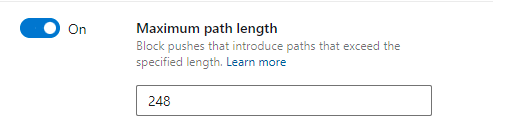
The Maximum path length setting blocks pushes that contain files or directories with path lengths that are invalid on any platform. To see what path lengths are invalid, see Git cross-platform compatibility. When you enable this setting, the default maximum value is 248. That value is supported across all three major platforms.
You can modify the maximum path value. For example, if you have only macOS or Linux developers in your organization, you might choose to set the maximum length to 1016. This value is supported on both platforms. You might also choose to set a lower maximum path value to enforce your organization's directory-naming conventions.
To set the maximum path length policy:
Select Project Settings > Repositories, and select a repository if you want to configure only that repository.
On the All Repositories or <Repository name> page, on the Policies tab, under Repository Policies, set Maximum path length to On or Off.
If you turned on the setting, enter a maximum path length.
Maximum file size policy
Large files checked in to Git remain in the repository indefinitely, which increases clone times and disk usage. For guidance on how to manage large files, see Manage and store large files in Git.
The Maximum file size policy setting blocks files over a certain size from entering the repository. If a push contains a new or updated file larger than the limit configured in this setting, the push is blocked. The user must rewrite their unpushed history to remove the large file and try the push again.
To configure the maximum file size policy:
Select Project Settings > Repositories, and select a repository if you want to configure only that repository.
On the All Repositories or <Repository name> page, on the Policies tab, under Repository Policies, set Maximum file size to On or Off.
If you turned on the setting, select a maximum file size.

Use az repos policy file-size create and az repos policy file-size update to manage maximum file size policy.
Create file size policy
az repos policy file-size create --blocking {false, true}
                                 --enabled {false, true}
                                 --maximum-git-blob-size
                                 --repository-id
                                 --use-uncompressed-size {false, true}
                                 [--detect {false, true}]
                                 [--org]
                                 [--project]
                                 [--subscription]
Parameters
| Parameter |
Description |
blocking |
Block if the policy isn't met. Accepted values are false and true. Required. |
enabled |
Enable the policy. Accepted values are false and true. Required. |
maximum-git-blob-size |
Maximum git blob size in bytes. For example, to specify a 10-byte limit, --maximum-git-blob-size 10. Required. |
repository-id |
ID of the repository on which to apply the policy. Required. |
use-uncompressed-size |
Whether to use uncompressed size. Accepted values are false and true. Required. |
detect |
Automatically detect the organization. Accepted values are false and true. |
org |
Azure DevOps organization URL. You can configure the default organization by using az devops configure -d organization=<ORG_URL>. Required if not configured as default or picked up via git config. An example is https://dev.azure.com/MyOrganizationName/. |
project, p |
Name or ID of the project. You can configure the default project by using az devops configure -d project=<NAME_OR_ID>. Required if not configured as default or picked up via git config. |
subscription |
Name or ID of the subscription. You can configure the default subscription by using az account set -s <NAME_OR_ID>. |
Example
The following example creates a file size policy with a 1-GB blocking maximum in the Fabrikam repository. You can get the repository ID by using az repos list. This example uses the default configuration az devops configure --defaults organization=https://dev.azure.com/fabrikamprime project="Fabrikam Fiber".
az repos policy file-size create --blocking true --enabled true --maximum-git-blob-size 10485760 --repository-id d28cd374-e7f0-4b1f-ad60-f349f155d47c --use-uncompressed-size true --output table

ID    Name                   Is Blocking    Is Enabled    Repository Id                         Branch
----  ---------------------  -------------  ------------  ------------------------------------  ------------
45    File size restriction  True           True          d28cd374-e7f0-4b1f-ad60-f349f155d47c  All Branches
Update file size policy
Use az repos policy file-size update to manage maximum file size policy.
az repos policy file-size update --id
                                 [--blocking {false, true}]
                                 [--detect {false, true}]
                                 [--enabled {false, true}]
                                 [--maximum-git-blob-size]
                                 [--org]
                                 [--project]
                                 [--repository-id]
                                 [--subscription]
                                 [--use-uncompressed-size {false, true}]
Parameters
| Parameter |
Description |
id, policy-id |
ID of the policy to update. Required. |
blocking |
Block if the policy isn't met. Accepted values are false and true. |
detect |
Automatically detect the organization. Accepted values are false and true. |
enabled |
Enable the policy. Accepted values are false and true. |
maximum-git-blob-size |
Maximum git blob size in bytes. |
org |
Azure DevOps organization URL. You can configure the default organization by using az devops configure -d organization=<ORG_URL>. Required if not configured as default or picked up via git config. An example is https://dev.azure.com/MyOrganizationName/. |
project, p |
Name or ID of the project. You can configure the default project by using az devops configure -d project=<NAME_OR_ID>. Required if not configured as default or picked up via git config. |
repository-id |
ID of the repository on which to apply the policy. |
subscription |
Name or ID of the subscription. You can configure the default subscription by using az account set -s <NAME_OR_ID>. |
use-uncompressed-size |
Whether to use uncompressed size. Accepted values are false and true. |
Example
The following example updates the maximum file size in the Fabrikam repository. The example uses the default configuration az devops configure --defaults organization=https://dev.azure.com/fabrikamprime project="Fabrikam Fiber".
az repos policy file-size update --id 45 --maximum-git-blob-size 20971520 --output table

ID    Name                   Is Blocking    Is Enabled    Repository Id                         Branch
----  ---------------------  -------------  ------------  ------------------------------------  ------------
45    File size restriction  True           True          d28cd374-e7f0-4b1f-ad60-f349f155d47c  All Branches
Azure DevOps CLI commands aren't supported for Azure DevOps Server.
Related content