Bemærk
Adgang til denne side kræver godkendelse. Du kan prøve at logge på eller ændre mapper.
Adgang til denne side kræver godkendelse. Du kan prøve at ændre mapper.
Azure DevOps Services | Azure DevOps Server | Azure DevOps Server 2022
Rollup provides summed values of selected fields for all child work items of a parent. Since Azure DevOps supports multiple levels of nesting, ensure you don't double-count values during rollup. Project managers typically seek rollup for estimated or completed work, effort, size, or story points.
Note
The system doesn't support rollup of the Effort, Story Points, or Size fields across product backlogs and portfolio backlogs.
Native support of rollup within the web portal
Azure Boards supports rollup columns on product and portfolio backlogs, rollup within the sprint Planning pane, as well as rollup on sprint backlogs and taskboards.
Display rollup progress bars, counts, or totals
From any product or portfolio backlog, you can add rollup progress bars, counts of descendant work items within a hierarchy, or sum of select fields, such as Story Points or Remaining Work.
For example, see the following progress bars for a portfolio backlog.

For more information, see Display rollup progress or totals.
View rollup within sprint Planning pane
As you assign backlog items to a sprint by using the Planning pane, the sprint window updates with a running tally of the number of backlog items and tasks, as well as the Planned Effort.

Planned Effort provides a sum of all Story Points or Effort values defined for backlog items assigned to the sprint. For more information, see Assign backlog items to a sprint.
View rollup of sprint backlogs and taskboards
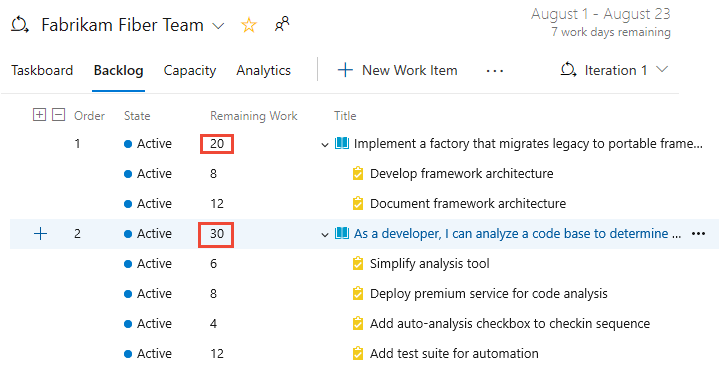
You can view a rollup of remaining work from a sprint backlog or taskboard.
From the sprint backlog, the sum of all Remaining Work defined for all tasks displays for the parent work item. This value also displays on the parent work item card when you view the task board.
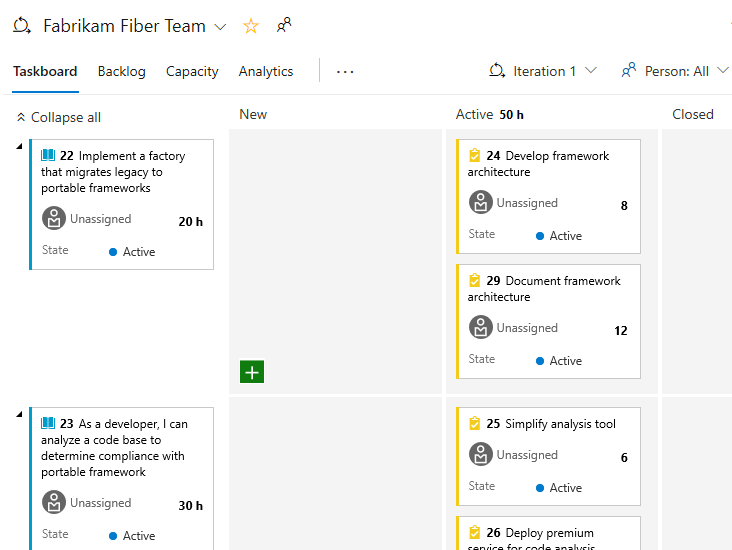
From a sprint task board, there are three types of rollup:
- The rollup of remaining work displays on the card for the parent work item.
- The sum of all remaining work defined for all tasks within a column displays at the top of each column.
- The sum of all remaining work defined for all tasks for a backlog item displays within each row, grouped by column.
When you update the status of a task as Completed, the system automatically sets the remaining work for that task to zero. For more information, see Task board.
Other tools that support rollup
To get a rollup of extra data fields in Azure DevOps work tracking data, use one of the following methods:
| Method | Azure DevOps Services | On-premises Azure DevOps |
|---|---|---|
| Work item query charts |  |
|
| Microsoft Excel | |
|
| Marketplace extensions | |
|
| Analytics | |
|
| SQL Server Reporting Services report |  |
|
Work item query charts and rollup
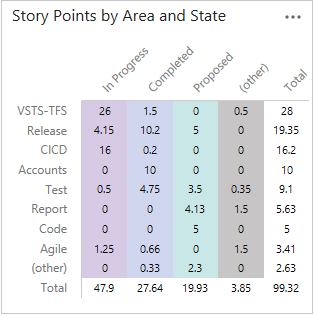
You can create a flat list query that sums the values of a field you specify. For more information, see Track progress by creating status and trend query-based charts. Charts support a count of work items or a sum of a field.
For example, the following pivot table sums the story points for user stories by area path and work item state.
Microsoft Excel and rollup of work tracking data
Export a query to Excel that contains the work items you want to provide rollup for. Then, you can write an Excel macro to get the sums and publish data back to Azure DevOps. For more information about Excel integration, see Bulk add or modify work items with Excel.
For more information about Excel macros, see Automate tasks with the Macro Recorder.
Tip
To provide support for opening work items and query results in Excel from the web portal, add the VSTS Open in Excel Marketplace extension to your organization or collection.
Marketplace extensions and custom controls
Several extensions from the Marketplace provide rollup. Here are a few that might support your needs:
- VSTS Rollup, supports Azure DevOps Services only
- TFS Aggregator, supports Azure DevOps
Or, you can write an extension using the REST API for work tracking to get rollup. A code sample available on GitHub that can get you started is TFS Aggregator.
Analytics service
You can use the Analytics Service to answer quantitative questions about your projects. By using this service, you can add Analytics widgets to your dashboard. Or, you can create additional reports by using Power BI.
SQL Server Reporting Services report
Several out-of-the-box reports provide rollup. Here's an example of rollup of completed and remaining work that the Stories Overview report provides. This report is part of the default Agile process template.
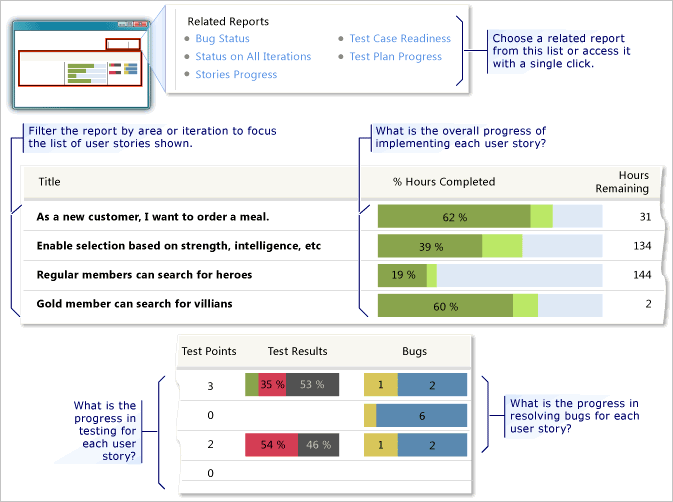
If you deploy SQL Server Analysis Services, you can get rollup for backlog items from these reports. The refresh frequency for these reports is two hours.
To add reports to your on-premises Azure DevOps Server deployment, see Add reports to a project.
Rollup requirements
To support rollup, structure your work items according to the following recommendations:
Use parent-child links to link work items that contain values you want to roll up.
Add required fields to the WITs that capture the rollup values. The default fields used to schedule work are only present on the task work item. These fields are:
Original Estimate (Microsoft.VSTS.Scheduling.OriginalEstimate): The amount of work required to complete a task. (Agile and CMMI)
Completed Work (Microsoft.VSTS.Scheduling.CompletedWork): The amount of work spent implementing a task. (Agile and CMMI)
Remaining Work (Microsoft.VSTS.Scheduling.RemainingWork): This field supports burndown charts.
If you create your project by using the Visual Studio Scrum process template, only Remaining Work is defined in the task.
For more information about adding fields, see Modify a field or add a custom field.
Determine the unit of time you use to track work and make sure your team or organization uses it consistently. For example, you can track tasks by using hours or days.
Decide if you want to make rollup values read-only on the work item form. By making them read-only, you prevent users from entering inaccurate data. Use the
ControlfieldReadonlyattribute to make fields read-only.
Q & A
Q: Can I get rollup of team capacity?
A: No. The data you enter for team capacity isn't stored in the regular data stores.