Bemærk
Adgang til denne side kræver godkendelse. Du kan prøve at logge på eller ændre mapper.
Adgang til denne side kræver godkendelse. Du kan prøve at ændre mapper.
Azure DevOps Services
Connect your Azure Boards project to GitHub.com repositories so that commits and pull requests automatically link to work items. This integration lets you plan and track work in Azure Boards while your team develops in GitHub.
After you connect, you can:
- Automatically link commits, branches, and pull requests to work items
- Monitor development progress directly from Azure Boards
- Use GitHub Copilot with work items for AI-assisted development
Note
Azure Boards supports integration with both GitHub.com and GitHub Enterprise Server. To connect from an on-premises Azure DevOps Server, see Connect Azure DevOps Server to GitHub Enterprise Server.
Prerequisites
| Category | Requirements |
|---|---|
| Permissions | - Member of the Project Collection Administrators group If you created the project, you have permissions. - Administrator or owner of the GitHub repository to connect to. You can connect to multiple GitHub repositories as long as you're an administrator for those repositories. |
| Project membership | Project member. |
Authentication options
The following authentication options are supported based on the GitHub platform you want to connect to.
GitHub.com
GitHub Enterprise Server
Note
If you connect with a PAT, configure single sign-on (SSO) for it on your GitHub account. SSO is required to list repositories from an organization that uses SAML authentication.
Connect Azure Boards to a GitHub repo
Sign in to your project (
https://dev.azure.com/{Your_Organization/Your_Project}).Select Project settings > GitHub connections.
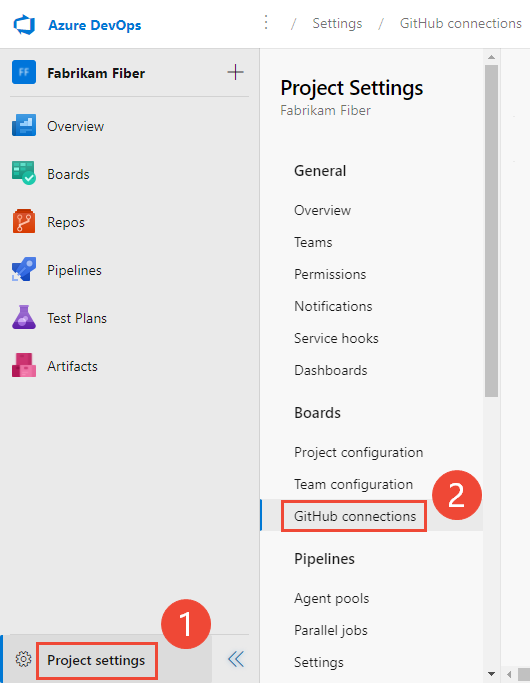
For a first-time connection, select Connect your GitHub account to authenticate with your GitHub credentials.
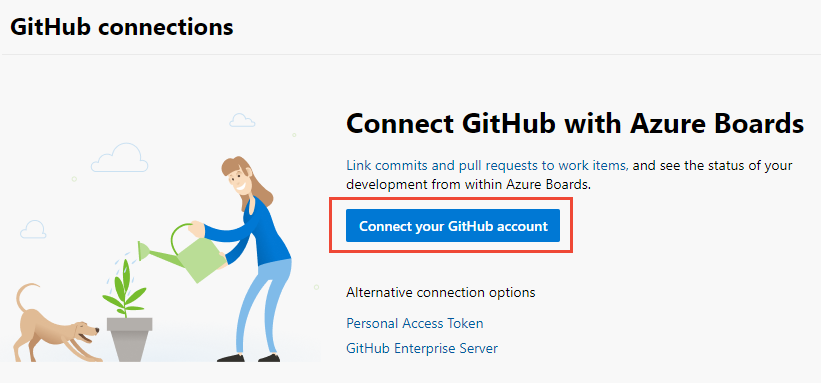
For subsequent connections, select
 New connection and choose your authentication method.
To connect with a PAT instead, see Add a GitHub connection using PAT. For GitHub Enterprise Server, see Register Azure DevOps in GitHub as an OAuth App.
Add a GitHub connection with GitHub credentials
You can connect up to 1,000 GitHub repositories to an Azure Boards project.
Sign in with your GitHub credentials. Choose an account where you're a repository administrator.
Select the GitHub account or organization to connect. Only organizations you own or administer appear in the list.
If all repositories for an organization are already connected, the following message appears:

Enter your GitHub credentials. If you have two-factor authentication enabled, enter the code sent by GitHub and select Verify.
Add GitHub repositories
After you authenticate, select the repositories to connect.
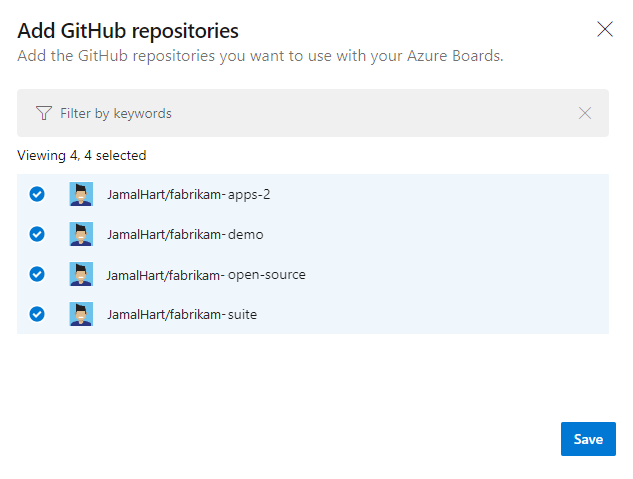
The Add GitHub Repositories dialog displays and preselects all repositories where you're an administrator in the selected organization. Clear any repositories you don't want to connect.
Tip
Connect each GitHub repo to projects in a single Azure DevOps organization to avoid unexpected AB# mention linking. For more information, see Resolve connection issues.
If all repositories are already connected to the current or another organization, the following message appears:
Select Save.
Confirm the connection
On the GitHub page, select Approve, Install, & Authorize.

Enter your GitHub credentials to confirm.
The new connection displays with the selected repositories listed.
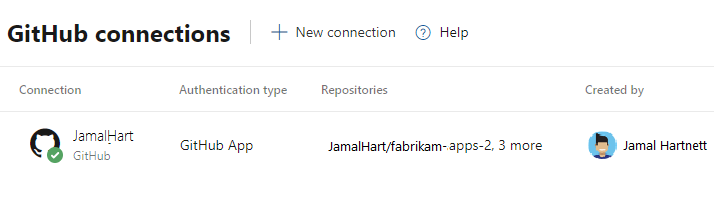
To change the configuration or manage the Azure Boards app for GitHub, see Change repository access to Azure Boards.
Add a GitHub connection using PAT
Important
Consider using the more secure Microsoft Entra tokens over higher-risk personal access tokens. For more information, see Reduce PAT usage. Review the authentication guidance to choose the right authentication mechanism for your needs.
Tip
When you create your GitHub PAT, include these scopes: repo, read:user, user:email, admin:repo_hook.
Select Personal Access Token in the New Connection dialog.

To create a GitHub PAT, go to GitHub Developer Settings > Personal access tokens.
Enter the PAT and select Connect.

Select the repositories to connect. For details, see Add GitHub repositories.
For a first-time connection, install the Azure Boards app for GitHub. See Confirm the connection.
Register Azure DevOps in GitHub as an OAuth App
To connect Azure DevOps with your GitHub Enterprise Server using OAuth, register the application as an OAuth App. For more information, see Create an OAuth App.
Register Azure DevOps Services
Sign in to the web portal for your GitHub Enterprise Server.

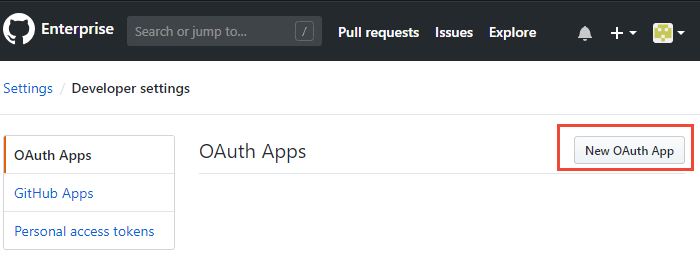
Open Settings > Developer settings > Oauth Apps > New OAuth App.
Enter registration information.
- Homepage URL — Your organization URL.
- Authorization callback URL — Use the pattern
{Organization URL}/_admin/oauth2/callback. For example:https://dev.azure.com/fabrikam/_admin/oauth2/callback
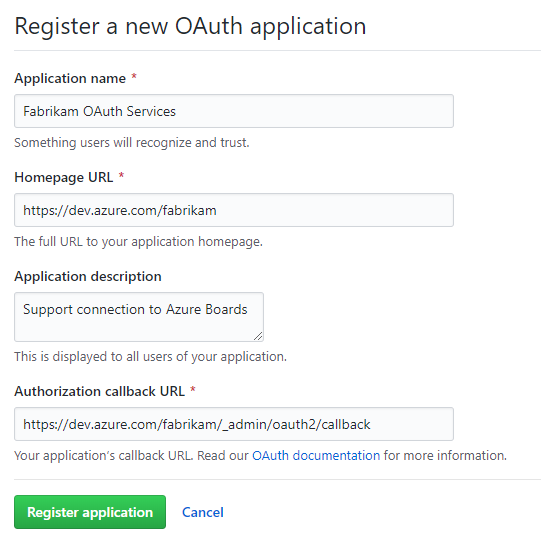
Select Register application.
Copy the Client ID and Client Secret that appear for your registered OAuth application.

Register your OAuth configuration in Azure DevOps Services
Sign in to the web portal for Azure DevOps Services.
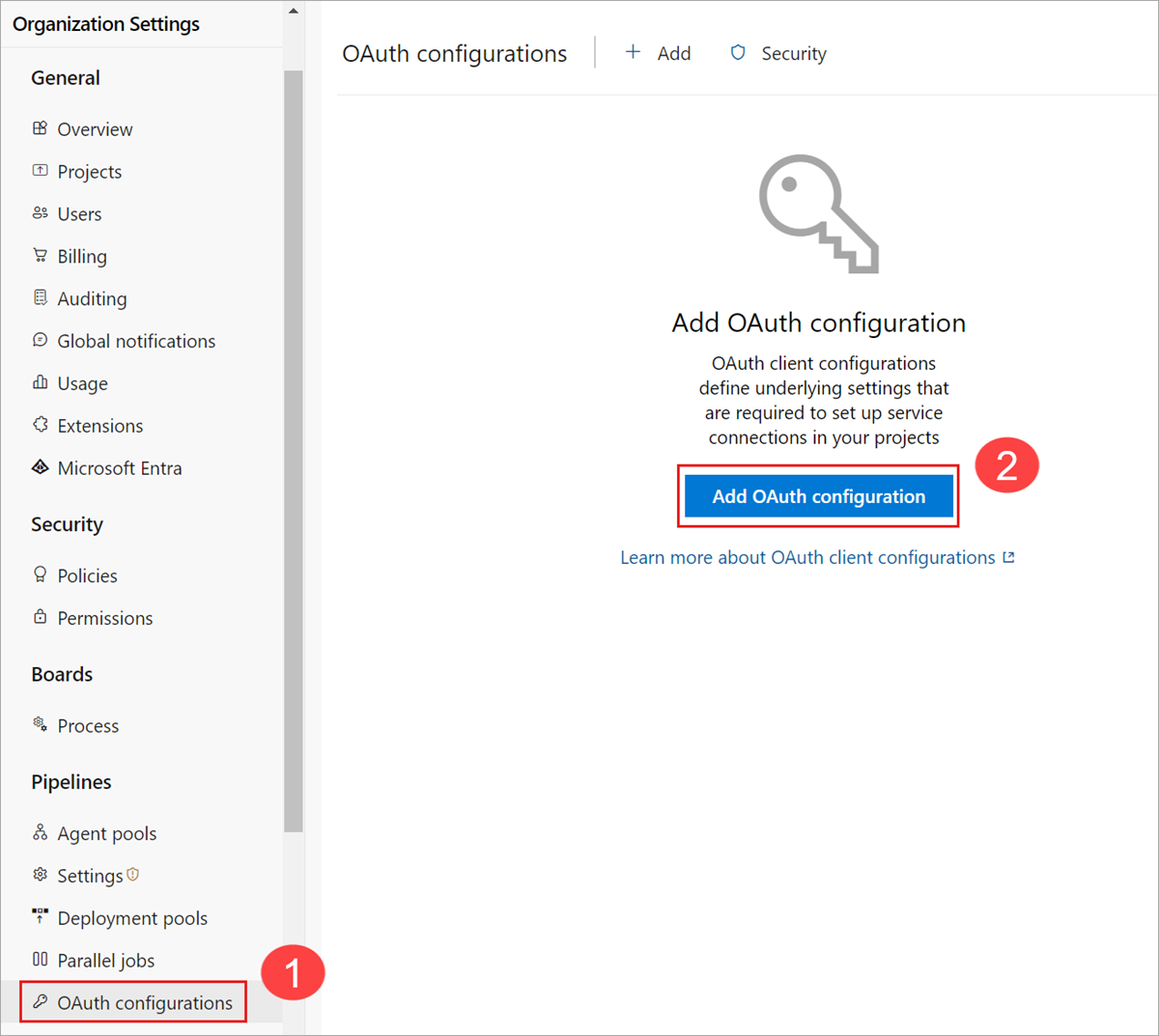
Select Organization settings > Oauth configurations > Add Oauth configuration.
Enter your information and select Create.
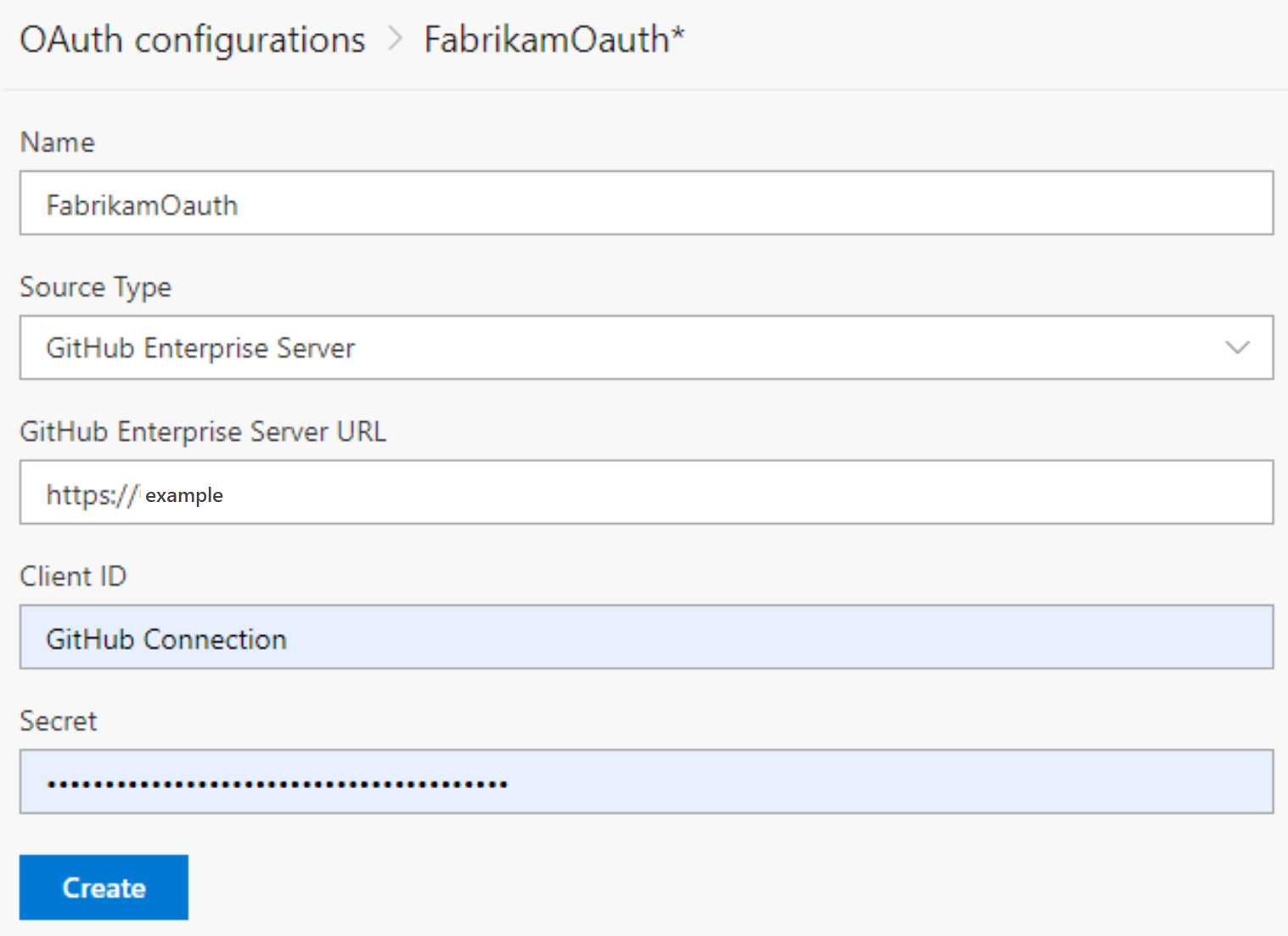
Connect Azure DevOps Services to GitHub Enterprise Server
Important
Your GitHub Enterprise Server must be accessible from the Internet. Verify that Azure DNS can resolve the server name and that your firewall allows access from Azure Data Center IP ranges. A common error is:
The remote name could not be resolved: 'github-enterprise-server.contoso.com'
If you see this error, check your server's accessibility. For more information, see Azure DNS FAQ.
Select Project settings > GitHub connections > GitHub Enterprise Server for a first-time connection.
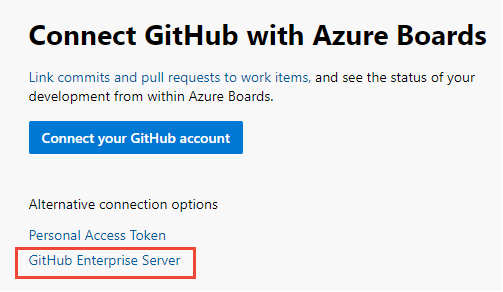
For subsequent connections, select GitHub Enterprise Server from the New GitHub connection dialog.

Select the authentication method.
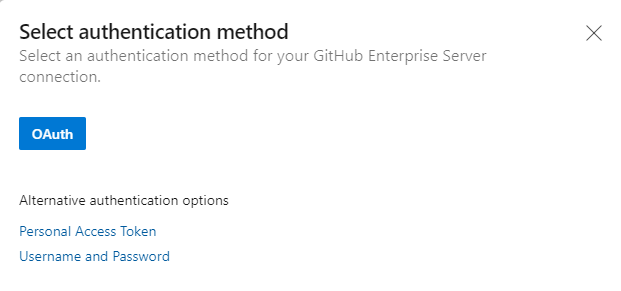
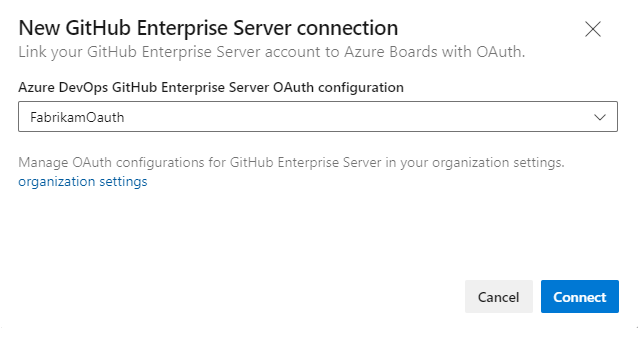
Connect with OAuth — Select the OAuth configuration you registered in Register your OAuth configuration, then select Connect.
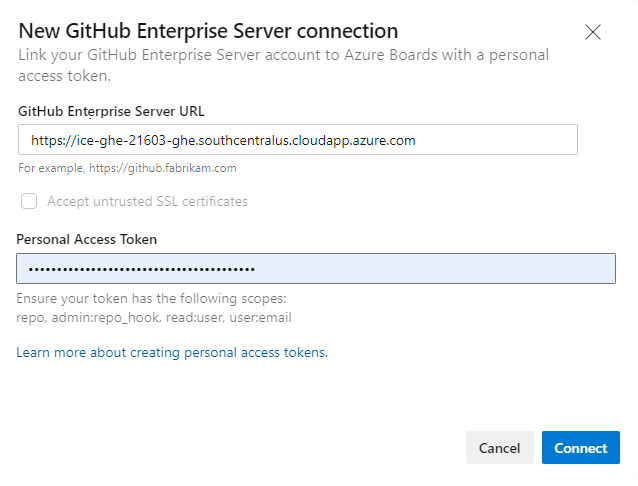
Connect with a Personal Access Token — Enter your GitHub Enterprise Server URL and PAT, then select Connect.
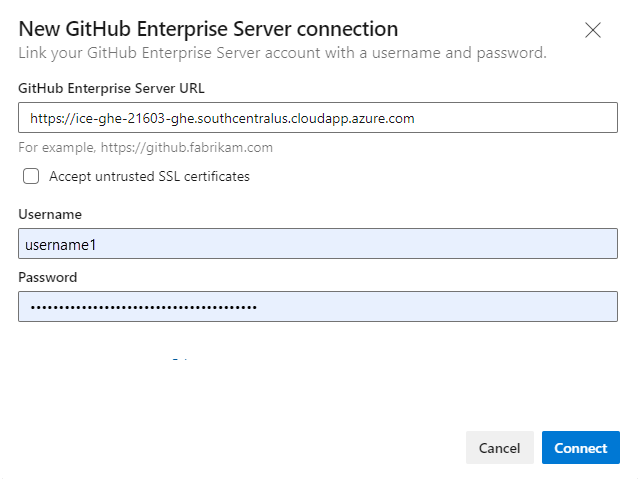
Connect with GitHub credentials — Enter your GitHub Enterprise Server URL and administrator credentials, then select Connect.
The dialog lists all repositories where you have administration rights. Toggle between Mine and All to find additional repositories, select the ones to add, and then select Save.

Tip
Each connection supports only one GitHub organization. To connect repositories from another organization, add a separate connection.
For a first-time connection, install the Azure Boards app for GitHub. See Confirm the connection.
Resolve connection issues
The Azure Boards–GitHub integration uses several authentication protocols to maintain the connection. Changes to permission scopes or credentials can disconnect linked GitHub repositories.
For an overview of the integration, see Azure Boards-GitHub integration.
Supported authentication options
The following supported authentication options depend on the GitHub platform you are connecting to:
Platform
GitHub.com
GitHub Enterprise Server
Azure DevOps Services
- GitHub.com user account
- Personal access token (PAT)
- OAuth
- PAT
- GitHub credentials
Azure DevOps Server 2020
Not applicable
- PAT
- GitHub credentials
Note
GitHub integration support:
- Azure DevOps Services: Integrates with both GitHub.com and GitHub Enterprise Server repositories through the Azure Boards app for GitHub.
- Azure DevOps Server 2020 and later: Supports integration with GitHub Enterprise Server repositories only.
- Other Git repositories: Integration isn't supported.
Grant Azure Boards organization access
If the integration isn't working as expected, verify that you granted organization access.
In the GitHub web portal, open Settings from your profile menu.

Select Applications under Integrations > Authorized OAuth Apps > Azure Boards.
Under Organization access, select Grant for any organization that shows Access request pending.

Resolve access issues
When the Azure Boards connection to GitHub loses access, a red-X alert appears in the UI. Hover over the alert to confirm the credentials are no longer valid. Remove the connection and create a new one.

OAuth connections:
Azure Boards access was denied for one of the repositories.
GitHub or Azure DevOps might be unreachable due to a service outage or network issue. Check status: GitHub | Azure DevOps
Delete and recreate the connection. GitHub prompts you to reauthorize Azure Boards.
PAT connections:
The PAT was revoked or its permission scopes are insufficient.
The user might not have admin permissions on the GitHub repo.
Recreate the PAT with the required scopes:
repo, read:user, user:email, admin:repo_hook. For more information, see Best practices for using PATs.
Resolve broken GitHub Enterprise Server connection
If you migrated from Azure DevOps Server to Azure DevOps Services with an existing GitHub Enterprise Server connection, work item mentions in GitHub might be delayed or missing because the callback URL is no longer valid.
Remove and re-create the connection — Follow the steps in Connect Azure DevOps Services to GitHub Enterprise Server.
Fix the webhook URL — In your GitHub repository settings, update the webhook URL to point to the migrated organization:
https://dev.azure.com/{OrganizationName}/_apis/work/events?api-version=5.2-preview
Connect to multiple Azure DevOps organizations
Connecting a GitHub repository to projects in multiple Azure DevOps organizations (for example, dev.azure.com/Contoso and dev.azure.com/Fabrikam) can cause unexpected AB# mention behavior. Work item IDs aren't unique across organizations, so AB#12 could match a work item in either organization. Both organizations might attempt to link to the matching ID, causing confusion.
To avoid this issue, connect each GitHub repository to only one Azure DevOps organization.
Note
The Azure Boards app for GitHub prevents connections to multiple organizations. If a repository is connected to the wrong organization, contact that organization's owner to remove the connection before adding it to the correct organization.
Update XML definitions for select work item types
If your organization uses the Hosted XML or on-premises XML process model, update the XML definitions for work item types to display GitHub link types in the Development section of work item forms.
For example, to link user stories and bugs to GitHub commits and pull requests from the Development section, update the XML definitions for those work item types.
Follow the steps in Hosted XML process model. For each work item type, find the Group Label="Development" section and add the following lines to support GitHub Commit and GitHub Pull Request link types:
             <ExternalLinkFilter Type="GitHub Pull Request" />
             <ExternalLinkFilter Type="GitHub Commit" />
After you update, the section should appear as follows:
<Group Label="Development">
   <Control Type="LinksControl" Name="Development">
      <LinksControlOptions ViewMode="Dynamic" ZeroDataExperience="Development" ShowCallToAction="true">
         <ListViewOptions GroupLinks="false">
         </ListViewOptions>
         <LinkFilters>
             <ExternalLinkFilter Type="Build" />
             <ExternalLinkFilter Type="Integrated in build" />
             <ExternalLinkFilter Type="Pull Request" />
             <ExternalLinkFilter Type="Branch" />
             <ExternalLinkFilter Type="Fixed in Commit" />
             <ExternalLinkFilter Type="Fixed in Changeset" />
             <ExternalLinkFilter Type="Source Code File" />
             <ExternalLinkFilter Type="Found in build" />
             <ExternalLinkFilter Type="GitHub Pull Request" />
             <ExternalLinkFilter Type="GitHub Commit" />
         </LinkFilters>
      </LinksControlOptions>
   </Control>
</Group>
FAQs
Q: Some of my users in Azure DevOps have GitHub identities. Do I need to add them as new GitHub users to my organization?
A: No. Have your users sign out, then sign back in to the organization with their GitHub credentials from a fresh browser session.
Q: I'm an organization Administrator and I enabled the policy for inviting GitHub users. Why can't I invite new GitHub users?
A: Sign out of Azure DevOps and sign back in to the organization (dev.azure.com/{organizationName} or organizationName.visualstudio.com) with your GitHub credentials from a fresh browser session.
Q: I signed in with my GitHub credentials, but why can't I invite GitHub users?
A: Only organization or project Administrators can invite new users. Work with your administrator to get permissions or ask them to add the user.
Q: Do GitHub Enterprise users get free access to Azure DevOps?
A: For more information, see User and permissions management FAQs/GitHub Enterprise.