Bemærk
Adgang til denne side kræver godkendelse. Du kan prøve at logge på eller ændre mapper.
Adgang til denne side kræver godkendelse. Du kan prøve at ændre mapper.
Azure DevOps Services | Azure DevOps Server | Azure DevOps Server 2022
Azure Artifacts enables developers to use a single feed to host their own packages as well as packages installed from public registries such as PyPI.org. When upstream sources are enabled, Azure Artifacts automatically saves a copy of any package installed from an upstream source by a collaborator or higher. This article walks you through setting up your project and using the command line to consume Python packages from the Python Package Index (PyPI).
Prerequisites
| Product | Requirements |
|---|---|
| Azure DevOps | - An Azure DevOps organization. - An Azure DevOps project. - Download and install Python. |
Create a new feed and add public upstreams
If you don’t already have a feed, follow the steps below to create one and enable Upstream sources. Otherwise, skip to the next step to add PyPI as an upstream source.
Sign in to Azure DevOps, then navigate to your project.
Select Artifacts, then select Create Feed.
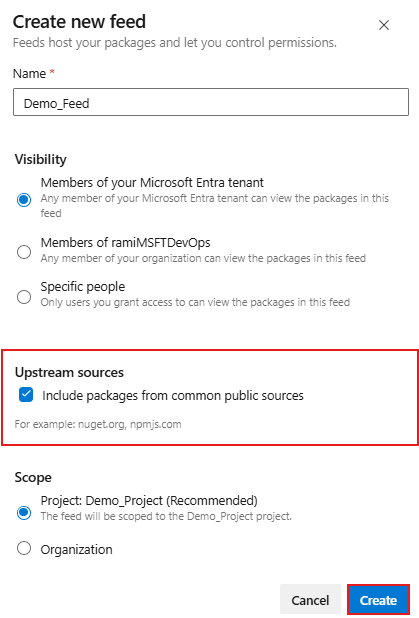
Enter a descriptive Name for your feed and set its Visibility. Specify the Scope, then check the Upstream sources checkbox to include packages from public registries.
Select Create when you're done.
Add PyPI upstream
If you enabled Upstream Sources when creating your feed, PyPI should have been automatically added as an upstream source. Otherwise, you can manually add it by following these steps:
Sign in to Azure DevOps, then navigate to your project.
Select Artifacts, then select the gear icon
 to open Feed Settings.
Select Upstream Sources, then select Add Upstream.
Select Public source, then choose PyPI (https://pypi.org/) from the dropdown list.
Select Add, then select Save in the upper-right corner to apply your changes.
Authenticate with your feed
Make sure you've installed Python from the prerequisites, then follow these steps to connect to your feed:
Run the following command to upgrade your Python package manager:
python -m pip install --upgrade pipRun the following command to install the Azure Artifacts keyring:
pip install keyring artifacts-keyringCreate a Personal access token with Packaging > Read scope to authenticate with Azure DevOps. The first time you connect to Azure DevOps, you’ll be prompted for credentials. Enter any value for the username, and use your PAT as the password. These credentials are cached locally and reused the next time you authenticate.
Navigate to your project directory, then create a virtual environment:
python -m venv <VIRTUAL_ENVIRONMENT_NAME>In your virtual environment, create a pip.ini file (Windows) or a pip.conf file (macOS/Linux), then add the following snippet. Replace the placeholders with the appropriate values. Don’t commit this file to a public repository, as it contains your personal access token.
Project-scoped feed:
[global]
extra-index-url=https://<FEED_NAME>:<YOUR_PERSONAL_ACCESS_TOKEN>@pkgs.dev.azure.com/<ORGANIZATION_NAME>/<PROJECT_NAME>/_packaging/<FEED_NAME>/pypi/simple/
Organization-scoped feed:
[global]
extra-index-url=https://<FEED_NAME>:<YOUR_PERSONAL_ACCESS_TOKEN>@pkgs.dev.azure.com/<ORGANIZATION_NAME>/_packaging/<FEED_NAME>/pypi/simple/
Install packages from PyPI
Now that you’ve authenticated with your feed, you can install packages from the PyPI upstream as you normally would with pip. Any package you install is automatically saved to your Azure Artifacts feed.
In this example, you’ll install requests, a popular HTTP library for Python.
Note
To save packages from upstream sources, you must have the Feed and Upstream Reader (Collaborator) role or higher. See manage permissions for more details.
Open a command prompt and navigate to your project directory, then activate your virtual environment. Replace the placeholder with the name of the virtual environment you created earlier:
<YOUR_VIRTUAL_ENVIRONMENT_NAME>/Scripts/ActivateRun the following command to install the requests package from PyPI.
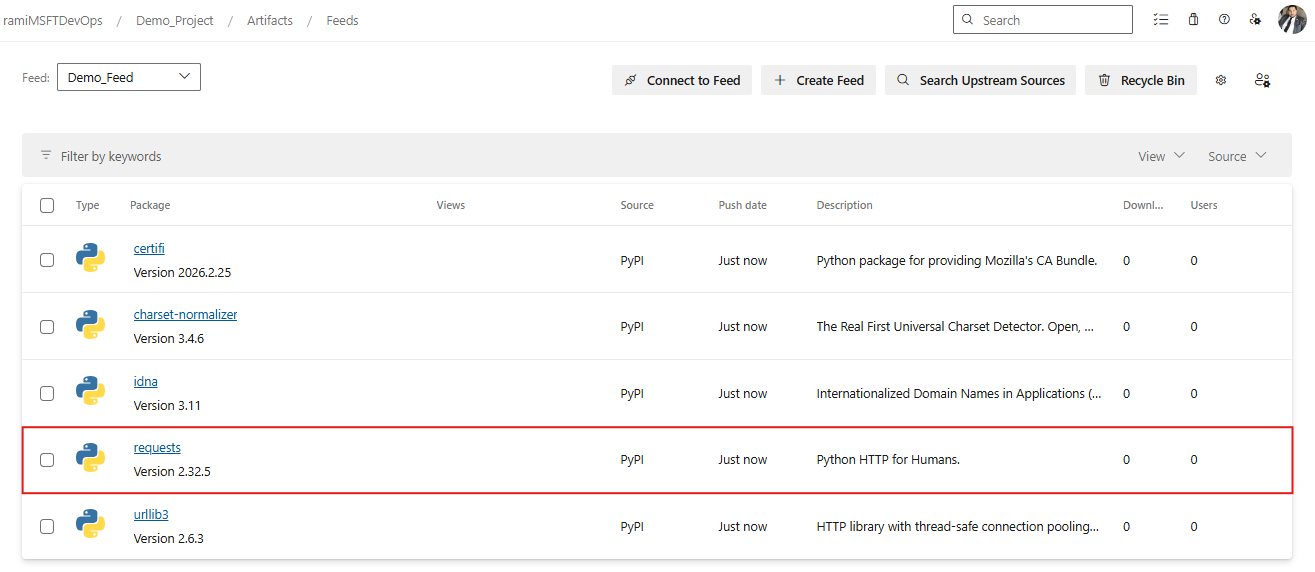
pip install requestsOnce the installation completes, Azure Artifacts saves a copy of the package to your feed. Navigate to your feed to verify that the package is available, as shown in the following screenshot.