Bemærk
Adgang til denne side kræver godkendelse. Du kan prøve at logge på eller ændre mapper.
Adgang til denne side kræver godkendelse. Du kan prøve at ændre mapper.
This article describes how to create a secure SSH connection to your Linux virtual machines using Azure Bastion. You can connect through the Azure portal (browser-based), via a specified IP address, or using a native client on your local computer. When you use Azure Bastion, your virtual machines don't require a client, agent, or additional software. Azure Bastion securely connects to all virtual machines in the virtual network without exposing RDP/SSH ports to the public internet. For more information, see What is Azure Bastion?
For native client connections using Azure CLI, see Connect to a VM using a Linux native client or Connect to a VM using a Windows native client. To connect to a Linux VM using RDP, see Create an RDP connection to a Linux VM.
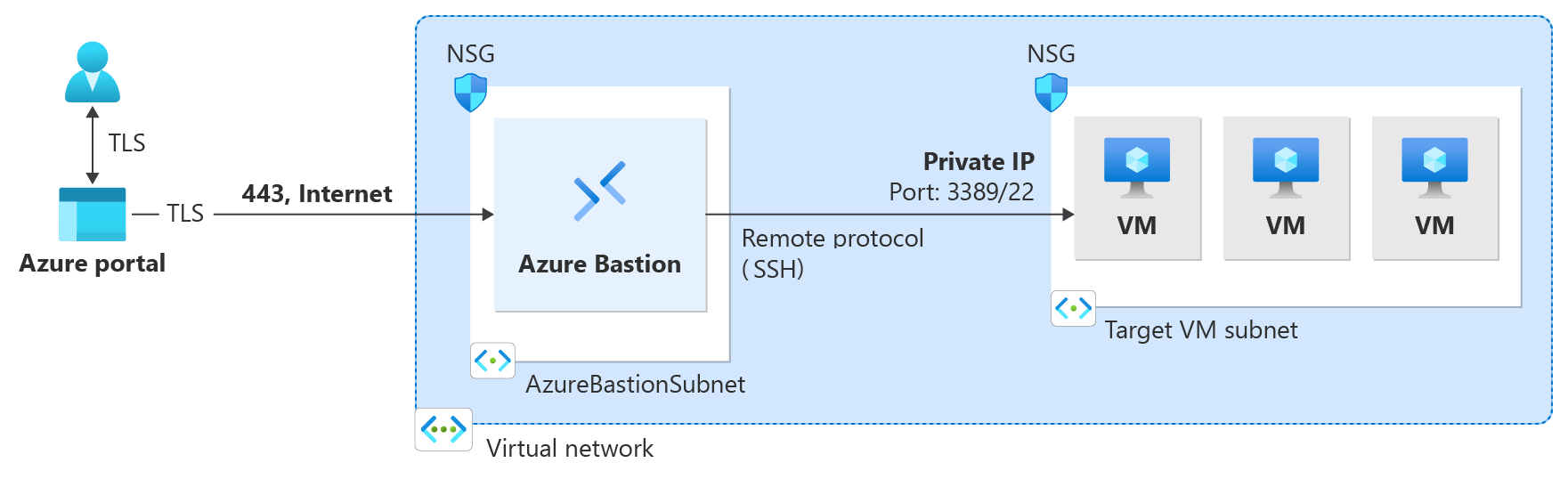
The following diagram shows the dedicated deployment architecture using an SSH connection.
Prerequisites
Before you begin, verify that you meet the following criteria:
An Azure Bastion host deployed in the virtual network where the virtual machine is located, or in a peered virtual network. To set up a Bastion host, see Create a bastion host. The SKU you need depends on your connection method:
Connection method Minimum SKU Additional configuration Azure portal (browser) Basic None Azure portal with custom ports Standard None IP-based connection Standard IP-based connection enabled Native client (SSH) Standard Native client support enabled A Linux virtual machine in the virtual network (or reachable from the virtual network for IP-based connections).
Required roles:
- Reader role on the virtual machine.
- Reader role on the NIC with private IP of the virtual machine.
- Reader role on the Azure Bastion resource.
- Reader role on the virtual network of the target virtual machine (if the Bastion deployment is in a peered virtual network).
- Virtual Machine Administrator Login or Virtual Machine User Login role (only required for Microsoft Entra ID authentication).
Ports: In order to connect to the Linux VM via SSH, you must have the following ports open on your VM:
- Inbound port: SSH (22) or
- Inbound port: Custom value (you'll then need to specify this custom port when you connect to the VM via Azure Bastion). This setting isn't available for the Basic or Developer SKU.
See the Azure Bastion FAQ for additional requirements.
Authentication methods
The following table shows which authentication methods are available for each connection method.
| Authentication method | Supported connection methods | Minimum SKU |
|---|---|---|
| Microsoft Entra ID | Azure portal, native client | Basic (portal), Standard (native client) |
| Username and password | Azure portal, IP address (portal), native client | Basic (portal), Standard (IP address, native client) |
| Password from Azure Key Vault | Azure portal | Basic |
| SSH private key from local file | Azure portal, IP address (portal), native client | Basic (portal), Standard (IP address, native client) |
| SSH private key from Azure Key Vault | Azure portal | Basic |
Authentication details
Configure the authentication settings for your connection. Not all authentication methods are available for every connection method. See the authentication methods table for availability.
- Microsoft Entra ID
- Username and password
- Password from Azure Key Vault
- SSH private key from local file
- SSH private key from Azure Key Vault
Available for: Azure portal, native client. Not supported for IP-based connections.
For prerequisites, setup steps, and connection instructions, see Configure Microsoft Entra ID authentication for Azure Bastion.
Key Vault configuration
If you're using Azure Key Vault to store a password or SSH private key, configure your Key Vault using the following requirements:
- If you didn't set up an Azure Key Vault resource, see Create a key vault and store your secret (password or SSH private key) as the value of a new Key Vault secret.
- Make sure you have List and Get access to the secrets stored in the Key Vault resource. To assign and modify access policies for your Key Vault resource, see Assign a Key Vault access policy.
- Store your secret in Azure Key Vault using the PowerShell or Azure CLI experience. Storing your secret via the Azure Key Vault portal experience interferes with the formatting and results in unsuccessful login. If you stored your private key as a secret using the portal experience and no longer have access to the original private key file, see Update SSH key to update access to your target VM with a new SSH key pair.
Connect to a virtual machine using SSH
Choose your connection method tab below to see the navigation steps for connecting to your VM. For available authentication methods per connection method, see the authentication methods table.
Use the Azure portal to create a browser-based SSH connection to your Linux virtual machine. This method connects directly through your browser. No native SSH client or additional software is required on your local computer. The Basic SKU or higher is required, or the Standard SKU if you need custom ports.
In the Azure portal, go to the virtual machine to which you want to connect. At the top of the virtual machine Overview page, select Connect, then select Connect via Bastion from the dropdown. This opens the Bastion page. You can also go to the Bastion page directly in the left pane.
On the Bastion page, the settings that you can configure depend on the Bastion SKU that your bastion host has been configured to use.
- If you're using a SKU higher than the Basic SKU, Connection Settings values (ports and protocols) are visible and can be configured.
- If you're using the Basic SKU or Developer SKU, you can't configure Connection Settings values. Instead, your connection uses the following default settings: SSH and port 22.
- To view and select an available Authentication Type, use the dropdown.
Configure your authentication settings. For details, see Authentication details. Select Connect.

Limitations
- IP-based connections: IP-based connection doesn't work with force tunneling over VPN, or when a default route is advertised over an ExpressRoute circuit. Azure Bastion requires access to the internet. Force tunneling or default route advertisement results in traffic being dropped.
- IP-based connections: UDR isn't supported on the Bastion subnet, including with IP-based connections.
- IP-based connections: Microsoft Entra ID authentication isn't supported for IP-based SSH connections. For more information, see Microsoft Entra ID authentication.
- Native client: Signing in using an SSH private key stored in Azure Key Vault isn't supported with native client connections.
- Native client: This feature isn't supported in Cloud Shell.
Next steps
- Connect to a Linux VM using RDP
- What is Azure Bastion?
- Configure Microsoft Entra ID authentication for identity-based access.
- Transfer files to your virtual machine using a native client.
- Configure a shareable link for users without Azure portal access.
- Azure Bastion FAQ