Bemærk
Adgang til denne side kræver godkendelse. Du kan prøve at logge på eller ændre mapper.
Adgang til denne side kræver godkendelse. Du kan prøve at ændre mapper.
In this article, you learn how to set up Azure Monitor logging for language model API requests and responses in Azure API Management.
The API Management administrator can use language model API request and response logs along with API Management gateway logs for scenarios such as:
Calculate usage for billing. Calculate usage metrics for billing based on the number of tokens consumed by each application or API consumer (for example, segmented by subscription ID or IP address).
Inspect messages. Inspect and analyze prompts and completions to help with debugging, auditing, and model evaluation.
Learn more about:
Prerequisites
- An Azure API Management instance.
- A managed language model chat completions API integrated with Azure API Management. For example, Import a Microsoft Foundry API.
- Access to an Azure Log Analytics workspace.
- Appropriate permissions to configure diagnostic settings and access logs in API Management.
Enable diagnostic setting for language model API logs
Enable a diagnostic setting to log requests that the gateway processes for large language model REST APIs. For each request, Azure Monitor receives:
Data about token usage, such as prompt tokens, completion tokens, and total tokens
Name of the model used
Optionally, the request and response messages: prompt and completion
Azure Monitor splits large requests and responses into multiple log entries with sequence numbers for later reconstruction, if needed.
Follow these steps to enable a diagnostic setting that directs language model API logs to a Log Analytics workspace. For more information, see Enable diagnostic setting for Azure Monitor logs.
In the Azure portal, navigate to your Azure API Management instance.
In the left menu, under Monitoring, select Diagnostic settings > + Add diagnostic setting.
Configure the setting to send AI gateway logs to a Log Analytics workspace:
- Under Logs, select Logs related to generative AI gateway.
- Under Destination details, select Send to Log Analytics workspace.
Review or configure other settings and make changes if needed.
Select Save.

Enable logging of requests or responses for language model API
You can enable diagnostic settings for all APIs or customize logging for specific APIs. Follow these steps to log both language model requests and response messages for an API. For more information, see Modify API logging settings.
- In the left menu of your API Management instance, select APIs > APIs and then select the name of the API.
- Select Settings from the top bar.
- Scroll down to the Diagnostic Logs section, and select Azure Monitor.
- In Log LLM messages, select Enabled.
- Select Log prompts and enter a size in bytes, such as 32768.
- Select Log completions and enter a size in bytes, such as 32768.
- Review other settings and make changes if needed. Select Save.

Note
If you enable collection, language model request or response messages up to 32 KB in size are sent in a single entry. Messages larger than 32 KB are split and logged in 32-KB chunks with sequence numbers for later reconstruction. Request messages and response messages can't exceed 2 MB each.
Review analytics workbook for language model APIs
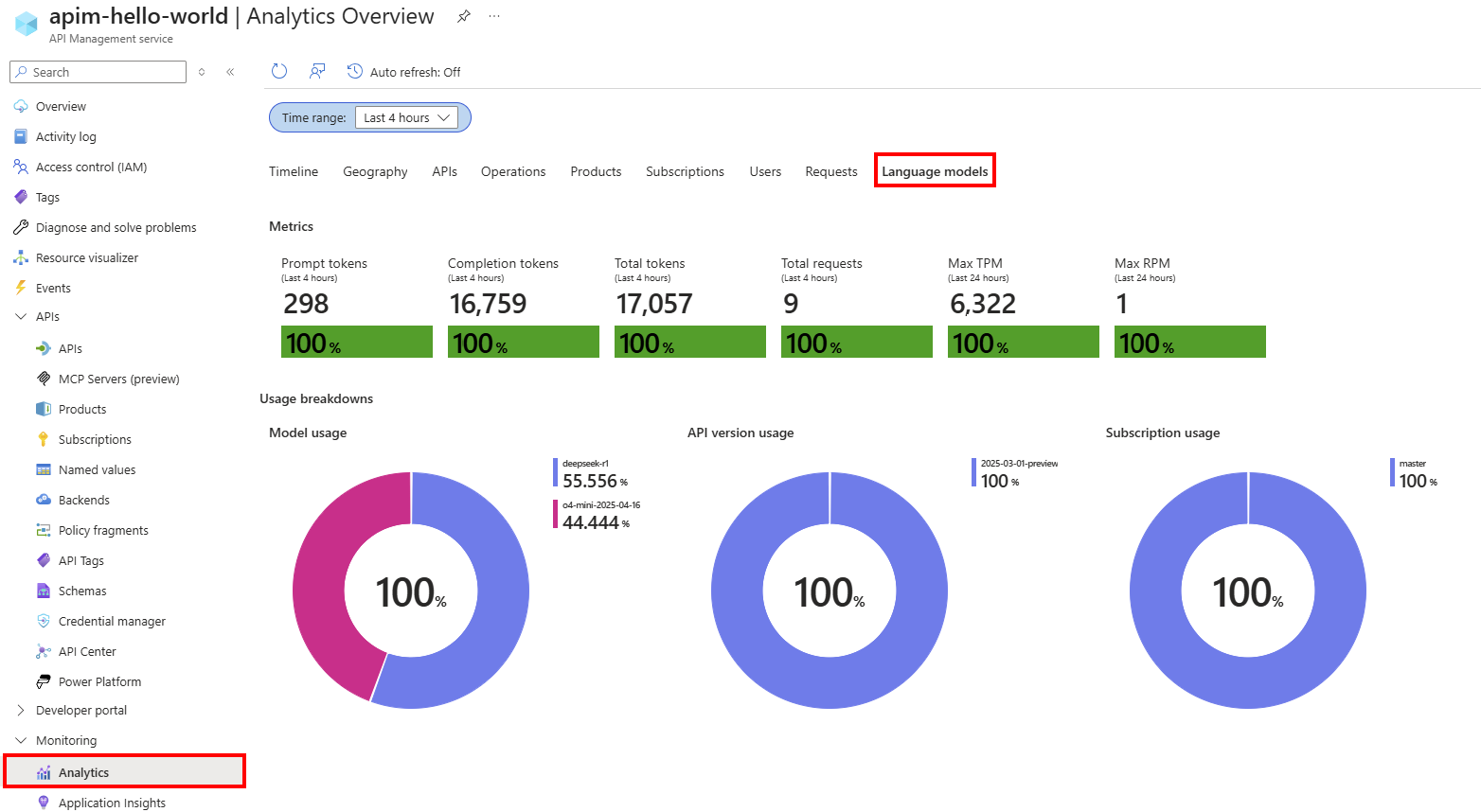
The Azure Monitor-based Analytics dashboard provides insights into language model API usage and token consumption using data aggregated in a Log Analytics workspace. For more information, see Get API analytics in Azure API Management.
- In the left menu of your API Management instance, select Monitoring > Analytics.
- Select the Language models tab.
- Review metrics and visualizations for language model API token consumption and requests in a selected Time range.
Review Azure Monitor logs for requests and responses
Review the ApiManagementGatewayLlmLog log for details about language model requests and responses, including token consumption, model deployment used, and other details over specific time ranges.
Requests and responses, including chunked messages for large requests and responses, appear in separate log entries that you can correlate by using the CorrelationId field.
For auditing purposes, use a Kusto query similar to the following query to join each request and response in a single record. Adjust the query to include the fields that you want to track.
ApiManagementGatewayLlmLog
| extend RequestArray = parse_json(RequestMessages)
| extend ResponseArray = parse_json(ResponseMessages)
| mv-expand RequestArray
| mv-expand ResponseArray
| project
    CorrelationId,
    RequestContent = tostring(RequestArray.content),
    ResponseContent = tostring(ResponseArray.content)
| summarize
    Input = strcat_array(make_list(RequestContent), " . "),
    Output = strcat_array(make_list(ResponseContent), " . ")
    by CorrelationId
| where isnotempty(Input) and isnotempty(Output)

Upload data to Microsoft Foundry for model evaluation
You can export language model logging data as a dataset for model evaluation in Microsoft Foundry. With model evaluation, you can assess the performance of your generative AI models and applications against a test model or dataset using built-in or custom evaluation metrics.
To use language model logs as a dataset for model evaluation:
- Join language model request and response messages into a single record for each interaction, as shown in the previous section. Include the fields you want to use for model evaluation.
- Export the dataset to CSV format, which is compatible with Microsoft Foundry.
- In the Microsoft Foundry portal, create a new evaluation to upload and evaluate the dataset.
For details to create and run a model evaluation in Microsoft Foundry, see Run evaluations from the Microsoft Foundry portal.