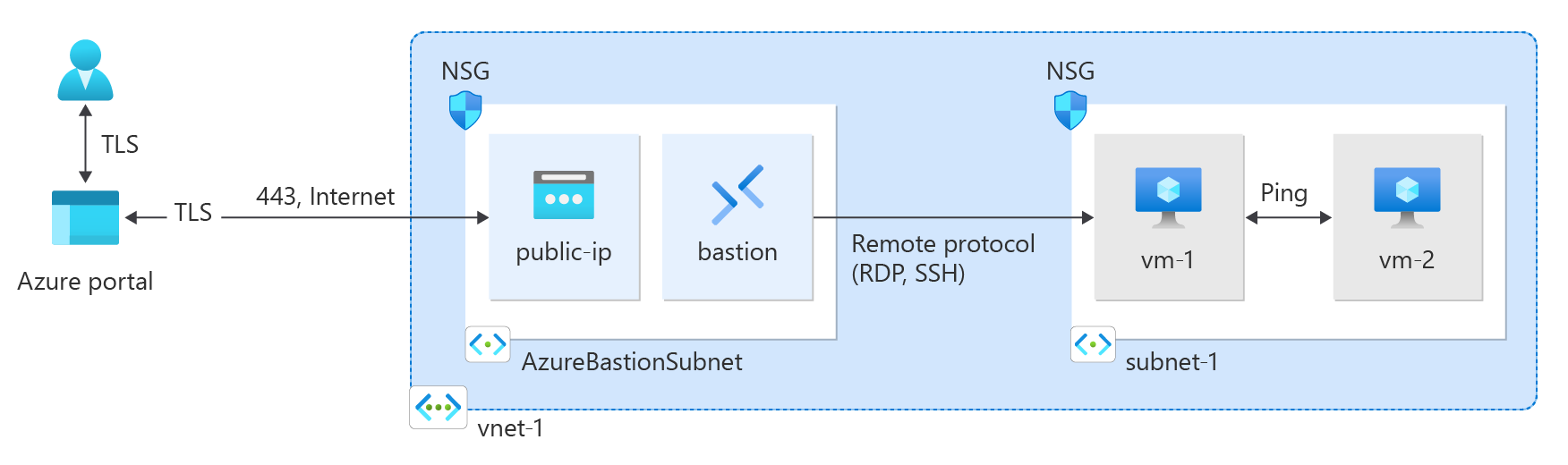
Learn how to create an Azure Virtual Network using the Azure portal, Azure CLI, Azure PowerShell, Azure Resource Manager (ARM) template, Bicep template, and Terraform. Two virtual machines and an Azure Bastion host are deployed to test connectivity between the virtual machines in the same virtual network. The Azure Bastion host facilitates secure and seamless RDP and SSH connectivity to the virtual machines directly in the Azure portal over SSL.
A virtual network is the fundamental building block for private networks in Azure. Azure Virtual Network enables Azure resources such as virtual machines to securely communicate with each other and the internet.
Use the following values to replace the placeholders of resources in this article:
Create a resource group
Sign in to the Azure portal with your Azure account.
In the search box at the top of the portal, enter Resource group. Select Resource groups in the search results.
Select + Create.
In the Basics tab of Create a resource group, enter, or select the following information:
| Setting |
Value |
| Subscription |
Select your subscription. |
| Resource group |
Enter <resource-group>. |
| Region |
Select <region>. |
Select Review + create.
Select Create.
Create a virtual network
In the search box at the top of the portal, enter Virtual network. Select Virtual networks in the search results.
Select + Create.
On the Basics tab of Create virtual network, enter, or select the following information:
| Setting |
Value |
| Project details |
|
| Subscription |
Select your subscription. |
| Resource group |
Select <resource-group>. |
| Instance details |
|
| Name |
Enter <virtual-network>. |
| Region |
Select <region>. |
Select Next to proceed to the Security tab.
Select Next to proceed to the IP Addresses tab.
In the address space box in Subnets, select the default subnet.
In Edit subnet, enter, or select the following information:
| Setting |
Value |
| Subnet details |
|
| Subnet template |
Leave the default Default. |
| Name |
Enter <subnet>. |
| Starting address |
Leave the default of 10.0.0.0. |
| Subnet size |
Leave the default of /24 (256 addresses). |
Select Save.
Select Review + create at the bottom of the screen, and when validation passes, select Create.
Deploy Azure Bastion
Azure Bastion uses your browser to connect to virtual machines (VMs) in your virtual network over secure shell (SSH) or remote desktop protocol (RDP) by using their private IP addresses. The virtual machines don't need public IP addresses, client software, or special configuration. For more information about Azure Bastion, see Azure Bastion.
Note
Hourly pricing starts from the moment that Bastion is deployed, regardless of outbound data usage. For more information, see Pricing and SKUs. If you're deploying Bastion as part of a tutorial or test, we recommend that you delete this resource after you finish using it.
In the search box at the top of the portal, enter Bastion. Select Bastions in the search results.
Select + Create.
In the Basics tab of Create a Bastion, enter, or select the following information:
| Setting |
Value |
| Project details |
|
| Subscription |
Select your subscription. |
| Resource group |
Select <resource-group>. |
| Instance details |
|
| Name |
Enter <bastion>. |
| Region |
Select <region>. |
| Tier |
Select Developer. |
| Configure virtual networks |
|
| Virtual network |
Select <virtual-network>. |
Select Review + create.
Select Create.
Create virtual machines
The following procedure creates two VMs named <virtual-machine-1> and <virtual-machine-2> in the virtual network:
In the portal, search for and select Virtual machines.
In Virtual machines, select + Create, and then select Azure virtual machine.
On the Basics tab of Create a virtual machine, enter, or select the following information:
| Setting |
Value |
| Project details |
|
| Subscription |
Select your subscription. |
| Resource group |
Select <resource-group>. |
| Instance details |
|
| Virtual machine name |
Enter <virtual-machine-1>. |
| Region |
Select <region>. |
| Availability options |
Select No infrastructure redundancy required. |
| Security type |
Leave the default of Standard. |
| Image |
Select Ubuntu Server 22.04 LTS - x64 Gen2. |
| VM architecture |
Leave the default of x64. |
| Size |
Select a size. |
| Administrator account |
|
| Authentication type |
Select SSH public key. |
| Username |
Enter azureuser. |
| SSH public key source |
Select Generate new key pair. |
| Key pair name |
Enter <virtual-machine-1>-key. |
| Inbound port rules |
|
| Public inbound ports |
Select None. |
Select the Networking tab. Enter or select the following information:
| Setting |
Value |
| Network interface |
|
| Virtual network |
Select <virtual-network>. |
| Subnet |
Select <subnet> (10.0.0.0/24). |
| Public IP |
Select None. |
| NIC network security group |
Select Advanced. |
| Configure network security group |
Select Create new.
Enter <network-security-group> for the name.
Leave the rest at the defaults and select OK. |
Leave the rest of the settings at the defaults and select Review + create.
Review the settings and select Create.
Wait for the first virtual machine to deploy then repeat the previous steps to create a second virtual machine with the following settings:
| Setting |
Value |
| Virtual machine name |
Enter <virtual-machine-2>. |
| SSH public key source |
Select Generate new key pair. |
| Key pair name |
Enter <virtual-machine-2>-key. |
| Virtual network |
Select <virtual-network>. |
| Subnet |
Select <subnet> (10.0.0.0/24). |
| Public IP |
Select None. |
| NIC network security group |
Select Advanced. |
| Configure network security group |
Select <network-security-group>. |
Note
Virtual machines in a virtual network with an Azure Bastion host don't need public IP addresses. Bastion provides the public IP, and the VMs use private IPs to communicate within the network. You can remove the public IPs from any VMs in Bastion-hosted virtual networks. For more information, see Dissociate a public IP address from an Azure VM.
Note
Azure provides a default outbound access IP for VMs that either aren't assigned a public IP address or are in the backend pool of an internal basic Azure load balancer. The default outbound access IP mechanism provides an outbound IP address that isn't configurable.
The default outbound access IP is disabled when one of the following events happens:
- A public IP address is assigned to the VM.
- The VM is placed in the backend pool of a standard load balancer, with or without outbound rules.
- An Azure NAT Gateway resource is assigned to the subnet of the VM.
VMs that you create by using virtual machine scale sets in flexible orchestration mode don't have default outbound access.
For more information about outbound connections in Azure, see Default outbound access in Azure and Use Source Network Address Translation (SNAT) for outbound connections.
Create a resource group
Use New-AzResourceGroup to create a resource group for the virtual network. Run the following code to create a resource group named <resource-group> in the <region> Azure region:
# Variable declarations
$resourceGroupName = 'test-rg'       # <resource-group>
$location = 'eastus2'                # <region>

$rg = @{
    Name = $resourceGroupName
    Location = $location
}
New-AzResourceGroup @rg
Create a virtual network
Use New-AzVirtualNetwork to create a virtual network named <virtual-network> with IP address prefix 10.0.0.0/16 in the <resource-group> resource group and <region> location:
# Variable declarations
$virtualNetworkName = 'vnet-1'       # <virtual-network>
$resourceGroupName = 'test-rg'       # <resource-group>
$location = 'eastus2'                # <region>

$vnet = @{
    Name = $virtualNetworkName
    ResourceGroupName = $resourceGroupName
    Location = $location
    AddressPrefix = '10.0.0.0/16'
}
$virtualNetwork = New-AzVirtualNetwork @vnet
Azure deploys resources to a subnet within a virtual network. Use Add-AzVirtualNetworkSubnetConfig to create a subnet configuration named <subnet> with address prefix 10.0.0.0/24:
# Variable declarations
$subnetName = 'subnet-1'             # <subnet>

$subnet = @{
    Name = $subnetName
    VirtualNetwork = $virtualNetwork
    AddressPrefix = '10.0.0.0/24'
}
$subnetConfig = Add-AzVirtualNetworkSubnetConfig @subnet
Associate the subnet configuration to the virtual network by using Set-AzVirtualNetwork:
$virtualNetwork | Set-AzVirtualNetwork
Deploy Azure Bastion
Azure Bastion uses your browser to connect to virtual machines in your virtual network over Secure Shell (SSH) or Remote Desktop Protocol (RDP) by using their private IP addresses. The virtual machines don't need public IP addresses, client software, or special configuration. For more information about Azure Bastion, see What is Azure Bastion?.
Hourly pricing starts from the moment that Bastion is deployed, regardless of outbound data usage. For more information, see Pricing and SKUs. If you're deploying Bastion as part of a tutorial or test, we recommend that you delete this resource after you finish using it.
Configure a Bastion subnet for your virtual network. This subnet is reserved exclusively for Bastion resources and must be named AzureBastionSubnet.
$subnet = @{
    Name = 'AzureBastionSubnet'
    VirtualNetwork = $virtualNetwork
    AddressPrefix = '10.0.1.0/26'
}
$subnetConfig = Add-AzVirtualNetworkSubnetConfig @subnet
Set the configuration:
$virtualNetwork | Set-AzVirtualNetwork
Create a public IP address for Bastion. The Bastion host uses the public IP to access SSH and RDP over port 443.
# Variable declarations
$resourceGroupName = 'test-rg'       # <resource-group>
$location = 'eastus2'                # <region>

$ip = @{
        ResourceGroupName = $resourceGroupName
        Name = 'public-ip'
        Location = $location
        AllocationMethod = 'Static'
        Sku = 'Standard'
        Zone = 1,2,3
}
New-AzPublicIpAddress @ip
Use the New-AzBastion command to create a new Basic SKU Bastion host in AzureBastionSubnet:
# Variable declarations
$bastionName = 'bastion'             # <bastion>
$resourceGroupName = 'test-rg'       # <resource-group>
$virtualNetworkName = 'vnet-1'       # <virtual-network>

$bastion = @{
    Name = $bastionName
    ResourceGroupName = $resourceGroupName
    PublicIpAddressRgName = $resourceGroupName
    PublicIpAddressName = 'public-ip'
    VirtualNetworkRgName = $resourceGroupName
    VirtualNetworkName = $virtualNetworkName
    Sku = 'Basic'
}
New-AzBastion @bastion
It takes about 10 minutes to deploy the Bastion resources. You can create virtual machines in the next section while Bastion deploys to your virtual network.
Create virtual machines
Create the first virtual machine
Create a virtual machine with New-AzVM. The following example creates a virtual machine named <virtual-machine-1> in the <virtual-network> virtual network.
# Variable declarations
$resourceGroupName = 'test-rg'       # <resource-group>
$location = 'eastus2'                # <region>
$vm1Name = 'vm-1'                    # <virtual-machine-1>
$virtualNetworkName = 'vnet-1'       # <virtual-network>
$subnetName = 'subnet-1'             # <subnet>

# Create a credential object
$cred = Get-Credential

# Define the virtual machine parameters
$vmParams = @{
    ResourceGroupName = $resourceGroupName
    Location = $location
    Name = $vm1Name
    Image = "Ubuntu2204"
    Size = "Standard_DS1_v2"
    Credential = $cred
    VirtualNetworkName = $virtualNetworkName
    SubnetName = $subnetName
    PublicIpAddressName = ""  # No public IP address
    SshKeyName = "$vm1Name-ssh-key"
    GenerateSshKey = $true
}

# Create the virtual machine
New-AzVM @vmParams
Create the second virtual machine
# Variable declarations
$resourceGroupName = 'test-rg'       # <resource-group>
$location = 'eastus2'                # <region>
$vm2Name = 'vm-2'                    # <virtual-machine-2>
$virtualNetworkName = 'vnet-1'       # <virtual-network>
$subnetName = 'subnet-1'             # <subnet>

# Create a credential object
$cred = Get-Credential

# Define the virtual machine parameters
$vmParams = @{
    ResourceGroupName = $resourceGroupName
    Location = $location
    Name = $vm2Name
    Image = "Ubuntu2204"
    Size = "Standard_DS1_v2"
    Credential = $cred
    VirtualNetworkName = $virtualNetworkName
    SubnetName = $subnetName
    PublicIpAddressName = ""  # No public IP address
    SshKeyName = "$vm2Name-ssh-key"
    GenerateSshKey = $true
}

# Create the virtual machine
New-AzVM @vmParams
Azure takes a few minutes to create the virtual machines. When Azure finishes creating the virtual machines, it returns the output to PowerShell.
Note
Virtual machines in a virtual network with a Bastion host don't need public IP addresses. Bastion provides the public IP, and the virtual machines use private IPs to communicate within the network. You can remove the public IPs from any virtual machines in Bastion-hosted virtual networks. For more information, see Dissociate a public IP address from an Azure Virtual Machine.
Note
Azure provides a default outbound access IP for VMs that either aren't assigned a public IP address or are in the backend pool of an internal basic Azure load balancer. The default outbound access IP mechanism provides an outbound IP address that isn't configurable.
The default outbound access IP is disabled when one of the following events happens:
- A public IP address is assigned to the VM.
- The VM is placed in the backend pool of a standard load balancer, with or without outbound rules.
- An Azure NAT Gateway resource is assigned to the subnet of the VM.
VMs that you create by using virtual machine scale sets in flexible orchestration mode don't have default outbound access.
For more information about outbound connections in Azure, see Default outbound access in Azure and Use Source Network Address Translation (SNAT) for outbound connections.
Create a resource group
Use az group create to create a resource group to host the virtual network. Use the following code to create a resource group named <resource-group> in the <region> Azure region:
# Variable declarations
resourceGroupName="test-rg"       # <resource-group>
location="eastus2"                # <region>

az group create \
    --name $resourceGroupName \
    --location $location
Create a virtual network and subnet
Use az network vnet create to create a virtual network named <virtual-network> with a subnet named <subnet> in the <resource-group> resource group:
# Variable declarations
virtualNetworkName="vnet-1"       # <virtual-network>
resourceGroupName="test-rg"       # <resource-group>
subnetName="subnet-1"             # <subnet>

az network vnet create \
    --name $virtualNetworkName \
    --resource-group $resourceGroupName \
    --address-prefix 10.0.0.0/16 \
    --subnet-name $subnetName \
    --subnet-prefixes 10.0.0.0/24
Deploy Azure Bastion
Azure Bastion uses your browser to connect to virtual machines in your virtual network over Secure Shell (SSH) or Remote Desktop Protocol (RDP) by using their private IP addresses. The virtual machines don't need public IP addresses, client software, or special configuration.
Hourly pricing starts from the moment that Bastion is deployed, regardless of outbound data usage. For more information, see Pricing and SKUs. If you're deploying Bastion as part of a tutorial or test, we recommend that you delete this resource after you finish using it. For more information about Azure Bastion, see What is Azure Bastion?.
Use az network vnet subnet create to create a Bastion subnet for your virtual network. This subnet is reserved exclusively for Bastion resources and must be named AzureBastionSubnet.
# Variable declarations
resourceGroupName="test-rg"       # <resource-group>
virtualNetworkName="vnet-1"       # <virtual-network>

az network vnet subnet create \
    --name AzureBastionSubnet \
    --resource-group $resourceGroupName \
    --vnet-name $virtualNetworkName \
    --address-prefix 10.0.1.0/26
Create a public IP address for Bastion. This IP address is used to connect to the Bastion host from the internet. Use az network public-ip create to create a public IP address named public-ip in the <resource-group> resource group:
# Variable declarations
resourceGroupName="test-rg"       # <resource-group>
location="eastus2"                # <region>

az network public-ip create \
    --resource-group $resourceGroupName \
    --name public-ip \
    --sku Standard \
    --location $location \
    --zone 1 2 3
Use az network bastion create to create a Bastion host in AzureBastionSubnet for your virtual network:
# Variable declarations
bastionName="bastion"             # <bastion>
resourceGroupName="test-rg"       # <resource-group>
virtualNetworkName="vnet-1"       # <virtual-network>
location="eastus2"                # <region>

az network bastion create \
    --name $bastionName \
    --public-ip-address public-ip \
    --resource-group $resourceGroupName \
    --vnet-name $virtualNetworkName \
    --location $location \
    --sku Basic
It takes about 10 minutes to deploy the Bastion resources. You can create virtual machines in the next section while Bastion deploys to your virtual network.
Create virtual machines
Create the first virtual machine
Create a virtual machine with az vm create. The following example creates a virtual machine named <virtual-machine-1> in the <virtual-network> virtual network. If SSH keys don't already exist in a default key location, the command creates them. The --no-wait option creates the virtual machine in the background, so you can continue to the next step.
# Variable declarations
resourceGroupName="test-rg"       # <resource-group>
vm1Name="vm-1"                    # <virtual-machine-1>
virtualNetworkName="vnet-1"       # <virtual-network>
subnetName="subnet-1"             # <subnet>

az vm create \
    --resource-group $resourceGroupName \
    --name $vm1Name \
    --image Ubuntu2204 \
    --vnet-name $virtualNetworkName \
    --subnet $subnetName \
    --public-ip-address "" \
    --admin-username azureuser \
    --generate-ssh-keys \
    --no-wait
Create the second virtual machine
Create a virtual machine named <virtual-machine-2> in the <virtual-network> virtual network.
# Variable declarations
resourceGroupName="test-rg"       # <resource-group>
vm2Name="vm-2"                    # <virtual-machine-2>
virtualNetworkName="vnet-1"       # <virtual-network>
subnetName="subnet-1"             # <subnet>

az vm create \
    --resource-group $resourceGroupName \
    --name $vm2Name \
    --image Ubuntu2204 \
    --vnet-name $virtualNetworkName \
    --subnet $subnetName \
    --public-ip-address "" \
    --admin-username azureuser \
    --generate-ssh-keys
The virtual machine takes a few minutes to create.
Note
Virtual machines in a virtual network with a Bastion host don't need public IP addresses. Bastion provides the public IP, and the virtual machines use private IPs to communicate within the network. You can remove the public IPs from any virtual machines in Bastion-hosted virtual networks. For more information, see Dissociate a public IP address from an Azure VM.
Note
Azure provides a default outbound access IP for VMs that either aren't assigned a public IP address or are in the backend pool of an internal basic Azure load balancer. The default outbound access IP mechanism provides an outbound IP address that isn't configurable.
The default outbound access IP is disabled when one of the following events happens:
- A public IP address is assigned to the VM.
- The VM is placed in the backend pool of a standard load balancer, with or without outbound rules.
- An Azure NAT Gateway resource is assigned to the subnet of the VM.
VMs that you create by using virtual machine scale sets in flexible orchestration mode don't have default outbound access.
For more information about outbound connections in Azure, see Default outbound access in Azure and Use Source Network Address Translation (SNAT) for outbound connections.
Review the template
The template that you use in this quickstart is from Azure Quickstart Templates.
{
  "$schema": "https://schema.management.azure.com/schemas/2019-04-01/deploymentTemplate.json#",
  "contentVersion": "1.0.0.0",
  "metadata": {
    "_generator": {
      "name": "bicep",
      "version": "0.6.18.56646",
      "templateHash": "10806234693722113459"
    }
  },
  "parameters": {
    "vnetName": {
      "type": "string",
      "defaultValue": "VNet1",
      "metadata": {
        "description": "VNet name"
      }
    },
    "vnetAddressPrefix": {
      "type": "string",
      "defaultValue": "10.0.0.0/16",
      "metadata": {
        "description": "Address prefix"
      }
    },
    "subnet1Prefix": {
      "type": "string",
      "defaultValue": "10.0.0.0/24",
      "metadata": {
        "description": "Subnet 1 Prefix"
      }
    },
    "subnet1Name": {
      "type": "string",
      "defaultValue": "Subnet1",
      "metadata": {
        "description": "Subnet 1 Name"
      }
    },
    "subnet2Prefix": {
      "type": "string",
      "defaultValue": "10.0.1.0/24",
      "metadata": {
        "description": "Subnet 2 Prefix"
      }
    },
    "subnet2Name": {
      "type": "string",
      "defaultValue": "Subnet2",
      "metadata": {
        "description": "Subnet 2 Name"
      }
    },
    "location": {
      "type": "string",
      "defaultValue": "[resourceGroup().location]",
      "metadata": {
        "description": "Location for all resources."
      }
    }
  },
  "resources": [
    {
      "type": "Microsoft.Network/virtualNetworks",
      "apiVersion": "2021-08-01",
      "name": "[parameters('vnetName')]",
      "location": "[parameters('location')]",
      "properties": {
        "addressSpace": {
          "addressPrefixes": [
            "[parameters('vnetAddressPrefix')]"
          ]
        },
        "subnets": [
          {
            "name": "[parameters('subnet1Name')]",
            "properties": {
              "addressPrefix": "[parameters('subnet1Prefix')]"
            }
          },
          {
            "name": "[parameters('subnet2Name')]",
            "properties": {
              "addressPrefix": "[parameters('subnet2Prefix')]"
            }
          }
        ]
      }
    }
  ]
}
The template defines the following Azure resources:
Deploy the template
Deploy the Resource Manager template to Azure:
Select Deploy to Azure to sign in to Azure and open the template. The template creates a virtual network with two subnets.

In the portal, on the Create a Virtual Network with two Subnets page, enter, or select the following values:
- Resource group: Select Create new, enter CreateVNetQS-rg for the resource group name, and then select OK.
- Virtual Network Name: Enter a name for the new virtual network.
Select Review + create, and then select Create.
When deployment finishes, select the Go to resource button to review the resources that you deployed.
Review deployed resources
Explore the resources that you created with the virtual network by browsing through the settings panes for VNet1:
To learn about the JSON syntax and properties for a virtual network in a template, see Microsoft.Network/virtualNetworks.
Create the virtual network and virtual machines
This quickstart uses the Two VMs in virtual network Bicep template from Azure Resource Manager Quickstart Templates to create the virtual network, resource subnet, and virtual machines. The Bicep template defines the following Azure resources:
Review the Bicep file:
@description('Admin username')
param adminUsername string

@description('Admin password')
@secure()
param adminPassword string

@description('Prefix to use for VM names')
param vmNamePrefix string = 'BackendVM'

@description('Location for all resources.')
param location string = resourceGroup().location

@description('Size of the virtual machines')
param vmSize string = 'Standard_D2s_v3'

var availabilitySetName = 'AvSet'
var storageAccountType = 'Standard_LRS'
var storageAccountName = uniqueString(resourceGroup().id)
var virtualNetworkName = 'vNet'
var subnetName = 'backendSubnet'
var loadBalancerName = 'ilb'
var networkInterfaceName = 'nic'
var subnetRef = resourceId('Microsoft.Network/virtualNetworks/subnets', virtualNetworkName, subnetName)
var numberOfInstances = 2

resource storageAccount 'Microsoft.Storage/storageAccounts@2023-01-01' = {
  name: storageAccountName
  location: location
  sku: {
    name: storageAccountType
  }
  kind: 'StorageV2'
}

resource availabilitySet 'Microsoft.Compute/availabilitySets@2023-09-01' = {
  name: availabilitySetName
  location: location
  sku: {
    name: 'Aligned'
  }
  properties: {
    platformUpdateDomainCount: 2
    platformFaultDomainCount: 2
  }
}

resource virtualNetwork 'Microsoft.Network/virtualNetworks@2023-09-01' = {
  name: virtualNetworkName
  location: location
  properties: {
    addressSpace: {
      addressPrefixes: [
        '10.0.0.0/16'
      ]
    }
    subnets: [
      {
        name: subnetName
        properties: {
          addressPrefix: '10.0.2.0/24'
        }
      }
    ]
  }
}

resource networkInterface 'Microsoft.Network/networkInterfaces@2023-09-01' = [for i in range(0, numberOfInstances): {
  name: '${networkInterfaceName}${i}'
  location: location
  properties: {
    ipConfigurations: [
      {
        name: 'ipconfig1'
        properties: {
          privateIPAllocationMethod: 'Dynamic'
          subnet: {
            id: subnetRef
          }
          loadBalancerBackendAddressPools: [
            {
              id: resourceId('Microsoft.Network/loadBalancers/backendAddressPools', loadBalancerName, 'BackendPool1')
            }
          ]
        }
      }
    ]
  }
  dependsOn: [
    virtualNetwork
    loadBalancer
  ]
}]

resource loadBalancer 'Microsoft.Network/loadBalancers@2023-09-01' = {
  name: loadBalancerName
  location: location
  sku: {
    name: 'Standard'
  }
  properties: {
    frontendIPConfigurations: [
      {
        properties: {
          subnet: {
            id: subnetRef
          }
          privateIPAddress: '10.0.2.6'
          privateIPAllocationMethod: 'Static'
        }
        name: 'LoadBalancerFrontend'
      }
    ]
    backendAddressPools: [
      {
        name: 'BackendPool1'
      }
    ]
    loadBalancingRules: [
      {
        properties: {
          frontendIPConfiguration: {
            id: resourceId('Microsoft.Network/loadBalancers/frontendIpConfigurations', loadBalancerName, 'LoadBalancerFrontend')
          }
          backendAddressPool: {
            id: resourceId('Microsoft.Network/loadBalancers/backendAddressPools', loadBalancerName, 'BackendPool1')
          }
          probe: {
            id: resourceId('Microsoft.Network/loadBalancers/probes', loadBalancerName, 'lbprobe')
          }
          protocol: 'Tcp'
          frontendPort: 80
          backendPort: 80
          idleTimeoutInMinutes: 15
        }
        name: 'lbrule'
      }
    ]
    probes: [
      {
        properties: {
          protocol: 'Tcp'
          port: 80
          intervalInSeconds: 15
          numberOfProbes: 2
        }
        name: 'lbprobe'
      }
    ]
  }
  dependsOn: [
    virtualNetwork
  ]
}

resource vm 'Microsoft.Compute/virtualMachines@2023-09-01' = [for i in range(0, numberOfInstances): {
  name: '${vmNamePrefix}${i}'
  location: location
  properties: {
    availabilitySet: {
      id: availabilitySet.id
    }
    hardwareProfile: {
      vmSize: vmSize
    }
    osProfile: {
      computerName: '${vmNamePrefix}${i}'
      adminUsername: adminUsername
      adminPassword: adminPassword
    }
    storageProfile: {
      imageReference: {
        publisher: 'MicrosoftWindowsServer'
        offer: 'WindowsServer'
        sku: '2019-Datacenter'
        version: 'latest'
      }
      osDisk: {
        createOption: 'FromImage'
      }
    }
    networkProfile: {
      networkInterfaces: [
        {
          id: networkInterface[i].id
        }
      ]
    }
    diagnosticsProfile: {
      bootDiagnostics: {
        enabled: true
        storageUri: storageAccount.properties.primaryEndpoints.blob
      }
    }
  }
}]

output location string = location
output name string = loadBalancer.name
output resourceGroupName string = resourceGroup().name
output resourceId string = loadBalancer.id
Deploy the Bicep template
Save the Bicep file to your local computer as main.bicep.
Deploy the Bicep file by using either the Azure CLI or Azure PowerShell:
CLI
az group create \
    --name TestRG \
    --location eastus

az deployment group create \
    --resource-group TestRG \
    --template-file main.bicep
PowerShell
 $rgParams = @{
     Name     = 'TestRG'
     Location = 'eastus'
 }
 New-AzResourceGroup @rgParams

 $deploymentParams = @{
     ResourceGroupName = 'TestRG'
     TemplateFile      = 'main.bicep'
 }
 New-AzResourceGroupDeployment @deploymentParams
When the deployment finishes, a message indicates the deployment succeeded.
Deploy Azure Bastion
Bastion uses your browser to connect to virtual machines in your virtual network over Secure Shell (SSH) or Remote Desktop Protocol (RDP) by using their private IP addresses. The virtual machines don't need public IP addresses, client software, or special configuration. For more information about Azure Bastion, see What is Azure Bastion?
Note
Hourly pricing starts from the moment that Bastion is deployed, regardless of outbound data usage. For more information, see Pricing and SKUs. If you're deploying Bastion as part of a tutorial or test, we recommend that you delete this resource after you finish using it.
Use the Azure Bastion as a Service Bicep template from Azure Resource Manager Quickstart Templates to deploy and configure Bastion in your virtual network. This Bicep template defines the following Azure resources:
Review the Bicep file:
@description('Name of new or existing vnet to which Azure Bastion should be deployed')
param vnetName string = 'vnet01'

@description('IP prefix for available addresses in vnet address space')
param vnetIpPrefix string = '10.1.0.0/16'

@description('Specify whether to provision new vnet or deploy to existing vnet')
@allowed([
  'new'
  'existing'
])
param vnetNewOrExisting string = 'new'

@description('Bastion subnet IP prefix MUST be within vnet IP prefix address space')
param bastionSubnetIpPrefix string = '10.1.1.0/26'

@description('Name of Azure Bastion resource')
param bastionHostName string

@description('Azure region for Bastion and virtual network')
param location string = resourceGroup().location

var publicIpAddressName = '${bastionHostName}-pip'
var bastionSubnetName = 'AzureBastionSubnet'

resource publicIp 'Microsoft.Network/publicIPAddresses@2022-01-01' = {
  name: publicIpAddressName
  location: location
  sku: {
    name: 'Standard'
  }
  properties: {
    publicIPAllocationMethod: 'Static'
  }
}

// if vnetNewOrExisting == 'new', create a new vnet and subnet
resource newVirtualNetwork 'Microsoft.Network/virtualNetworks@2022-01-01' = if (vnetNewOrExisting == 'new') {
  name: vnetName
  location: location
  properties: {
    addressSpace: {
      addressPrefixes: [
        vnetIpPrefix
      ]
    }
    subnets: [
      {
        name: bastionSubnetName
        properties: {
          addressPrefix: bastionSubnetIpPrefix
        }
      }
    ]
  }
}

// if vnetNewOrExisting == 'existing', reference an existing vnet and create a new subnet under it
resource existingVirtualNetwork 'Microsoft.Network/virtualNetworks@2022-01-01' existing = if (vnetNewOrExisting == 'existing') {
  name: vnetName
}
resource subnet 'Microsoft.Network/virtualNetworks/subnets@2022-01-01' = if (vnetNewOrExisting == 'existing') {
  parent: existingVirtualNetwork
  name: bastionSubnetName
  properties: {
    addressPrefix: bastionSubnetIpPrefix
  }
}

resource bastionHost 'Microsoft.Network/bastionHosts@2022-01-01' = {
  name: bastionHostName
  location: location
  dependsOn: [
    newVirtualNetwork
    existingVirtualNetwork
  ]
  properties: {
    ipConfigurations: [
      {
        name: 'IpConf'
        properties: {
          subnet: {
            id: subnet.id
          }
          publicIPAddress: {
            id: publicIp.id
          }
        }
      }
    ]
  }
}
Deploy the Bicep template
Save the Bicep file to your local computer as bastion.bicep.
Use a text or code editor to make the following changes in the file:
- Line 2: Change
param vnetName string from 'vnet01' to 'VNet'.
- Line 5: Change
param vnetIpPrefix string from '10.1.0.0/16' to '10.0.0.0/16'.
- Line 12: Change
param vnetNewOrExisting string from 'new' to 'existing'.
- Line 15: Change
param bastionSubnetIpPrefix string from '10.1.1.0/26' to '10.0.1.0/26'.
- Line 18: Change
param bastionHostName string to param bastionHostName = 'VNet-bastion'.
The first 18 lines of your Bicep file should now look like this example:
@description('Name of new or existing vnet to which Azure Bastion should be deployed')
param vnetName string = 'VNet'

@description('IP prefix for available addresses in vnet address space')
param vnetIpPrefix string = '10.0.0.0/16'

@description('Specify whether to provision new vnet or deploy to existing vnet')
@allowed([
  'new'
  'existing'
])
param vnetNewOrExisting string = 'existing'

@description('Bastion subnet IP prefix MUST be within vnet IP prefix address space')
param bastionSubnetIpPrefix string = '10.0.1.0/26'

@description('Name of Azure Bastion resource')
param bastionHostName = 'VNet-bastion'
Save the bastion.bicep file.
Deploy the Bicep file by using either the Azure CLI or Azure PowerShell:
CLI
az deployment group create \
     --resource-group TestRG \
     --template-file bastion.bicep
PowerShell
$deploymentParams = @{
    ResourceGroupName = 'TestRG'
    TemplateFile      = 'bastion.bicep'
}
New-AzResourceGroupDeployment @deploymentParams
When the deployment finishes, a message indicates the deployment succeeded.
Note
Virtual machines in a virtual network with a Bastion host don't need public IP addresses. Bastion provides the public IP, and the virtual machines use private IPs to communicate within the network. You can remove the public IPs from any virtual machines in Bastion-hosted virtual networks. For more information, see Dissociate a public IP address from an Azure VM.
Review deployed resources
Use the Azure CLI, Azure PowerShell, or the Azure portal to review the deployed resources:
CLI
az resource list --resource-group TestRG
PowerShell
Get-AzResource -ResourceGroupName TestRG
Portal
In the Azure portal, search for and select resource groups. On the Resource groups page, select TestRG from the list of resource groups.
On the Overview page for TestRG, review all the resources that you created, including the virtual network, the two virtual machines, and the Bastion host.
Select the VNet virtual network. On the Overview page for VNet, note the defined address space of 10.0.0.0/16.
On the left menu, select Subnets. On the Subnets page, note the deployed subnets of backendSubnet and AzureBastionSubnet with the assigned values from the Bicep files.