Bemærk
Adgang til denne side kræver godkendelse. Du kan prøve at logge på eller ændre mapper.
Adgang til denne side kræver godkendelse. Du kan prøve at ændre mapper.
I denne artikel præsenteres nogle kodestykker med eksempler, der viser, hvordan du interagerer med Microsoft Sentinel lake-data ved hjælp af Jupyter-notesbøger for at analysere sikkerhedsdata i Microsoft Sentinel datasø. Disse eksempler illustrerer, hvordan du får adgang til og analyserer data fra forskellige tabeller, f.eks. Microsoft Entra ID logonlogge, gruppeoplysninger og enhedsnetværkshændelser. Kodestykkerne er designet til at køre i Jupyter-notesbøger i Visual Studio Code ved hjælp af udvidelsen Microsoft Sentinel.
Hvis du vil køre disse eksempler, skal du have de nødvendige tilladelser og Visual Studio Code installeret sammen med udvidelsen Microsoft Sentinel. Du kan få flere oplysninger under Microsoft Sentinel tilladelser til datasøer og Brug Jupyter-notesbøger med Microsoft Sentinel datasø.
Analyse af mislykkede logonforsøg
I dette eksempel identificeres brugere med mislykkede logonforsøg. Det gør du ved at bruge dette eksempel på notesbogen til at behandle logondata fra to tabeller:
- SigninLogs
- AADNonInteractiveUserSignInLogs
Notesbogen udfører følgende trin:
- Opret en funktion til behandling af data fra de angivne tabeller, som omfatter:
- Indlæs data fra de angivne tabeller i DataFrames.
- Parse feltet 'Status' JSON for at udtrække 'errorCode' og afgøre, om hvert logonforsøg lykkedes eller mislykkedes.
- Aggregere dataene for at tælle antallet af mislykkede og vellykkede logonforsøg for hver bruger.
- Filtrer dataene, så de kun indeholder brugere med mere end 100 mislykkede logonforsøg og mindst ét vellykket logonforsøg.
- Sortér resultaterne efter antallet af mislykkede logonforsøg.
- Kald funktionen for både
SigninLogsogAADNonInteractiveUserSignInLogstabeller. - Kombiner resultaterne fra begge tabeller i en enkelt DataFrame.
- Konvertér DataFrame til en Pandas-dataramme.
- Filtrer Pandas DataFrame for at få vist de øverste 20 brugere med det højeste antal mislykkede logonforsøg.
- Opret et liggende søjlediagram for at visualisere brugerne med det højeste antal mislykkede logonforsøg.
Bemærk!
Det tager ca. 10 minutter at køre denne notesbog på den store gruppe, afhængigt af mængden af data i logfiltabellerne
# Import necessary libraries
import matplotlib.pyplot as plt
from sentinel_lake.providers import MicrosoftSentinelProvider
from pyspark.sql.functions import col, when, count, from_json, desc
from pyspark.sql.types import StructType, StructField, StringType

data_provider = MicrosoftSentinelProvider(spark)

# Function to process data
def process_data(table_name,workspace_name):
    # Load data into DataFrame
    df = data_provider.read_table(table_name, workspace_name)

    # Define schema for parsing the 'Status' JSON field
    status_schema = StructType([StructField("errorCode", StringType(), True)])
    # Parse the 'Status' JSON field to extract 'errorCode'
    df = df.withColumn("Status_json", from_json(col("Status"), status_schema)) \
           .withColumn("ResultType", col("Status_json.errorCode"))
    # Define success codes
    success_codes = ["0", "50125", "50140", "70043", "70044"]

    # Determine FailureOrSuccess based on ResultType
    df = df.withColumn("FailureOrSuccess", when(col("ResultType").isin(success_codes), "Success").otherwise("Failure"))

    # Summarize FailureCount and SuccessCount
    df = df.groupBy("UserPrincipalName", "UserDisplayName", "IPAddress") \
           .agg(count(when(col("FailureOrSuccess") == "Failure", True)).alias("FailureCount"),
                count(when(col("FailureOrSuccess") == "Success", True)).alias("SuccessCount"))

    # Filter where FailureCount > 100 and SuccessCount > 0
    df = df.filter((col("FailureCount") > 100) & (col("SuccessCount") > 0))

    # Order by FailureCount descending
    df = df.orderBy(desc("FailureCount"))

    return df

# Process the tables to a common schema
workspace_name = "your-workspace-name"  # Replace with your actual workspace name
aad_signin = process_data("SigninLogs", workspace_name)
aad_non_int = process_data("AADNonInteractiveUserSignInLogs", workspace_name)

# Union the DataFrames
result_df = aad_signin.unionByName(aad_non_int)

# Show the result
result_df.show()

# Convert the Spark DataFrame to a Pandas DataFrame
result_pd_df = result_df.toPandas()

# Filter to show table with top 20 users with the highest failed sign-ins attempted
top_20_df = result_pd_df.nlargest(20, 'FailureCount')

# Create bar chart to show users by highest failed sign-ins attempted
plt.figure(figsize=(12, 6))
plt.bar(top_20_df['UserDisplayName'], top_20_df['FailureCount'], color='skyblue')
plt.xlabel('Users')
plt.ylabel('Number of Failed sign-ins')
plt.title('Top 20 Users with Failed sign-ins')
plt.xticks(rotation=45, ha='right')
plt.tight_layout()
plt.show()
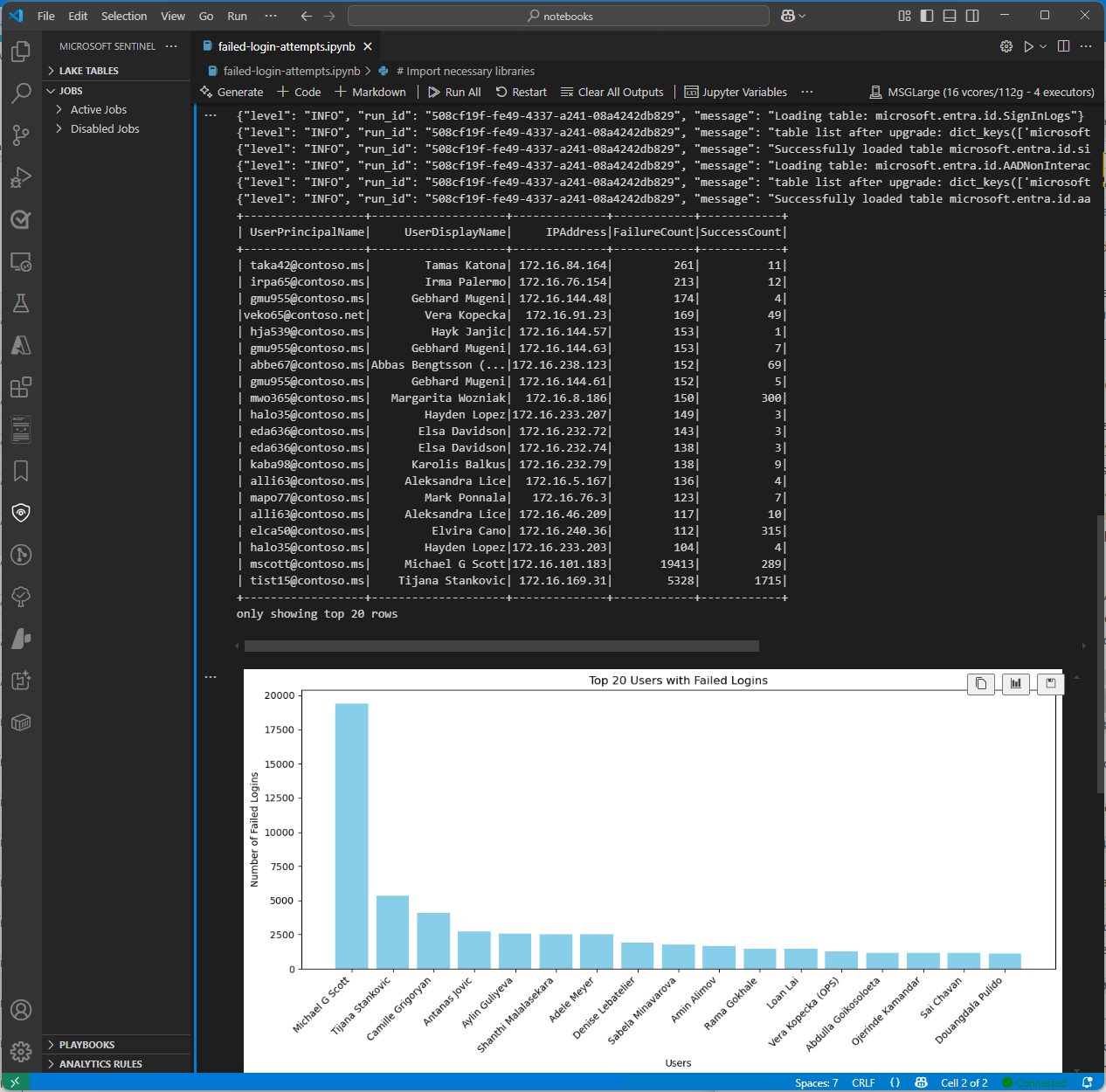
På følgende skærmbillede kan du se et eksempel på outputtet af ovenstående kode, der viser de øverste 20 brugere med det højeste antal mislykkede logonforsøg i et liggende søjlediagramformat.
Adgang til tabellen Lake Tier Microsoft Entra ID Group
I følgende kodeeksempel kan du se, hvordan du får adgang til tabellen EntraGroups i Microsoft Sentinel datasø. Der vises forskellige felter, f.eksdisplayName. , groupTypes, mailmailNickname, , descriptionog tenantId.
from sentinel_lake.providers import MicrosoftSentinelProvider
data_provider = MicrosoftSentinelProvider(spark)

table_name = "EntraGroups"
df = data_provider.read_table(table_name)
df.select("displayName", "groupTypes", "mail", "mailNickname", "description", "tenantId").show(100, truncate=False)
På følgende skærmbillede kan du se et eksempel på outputtet af ovenstående kode, der viser Microsoft Entra ID gruppeoplysninger i et datarammeformat.

Få adgang Microsoft Entra ID logonlogfiler for en bestemt bruger
Følgende kodeeksempel viser, hvordan du får adgang til tabellen Microsoft Entra ID SigninLogs og filtrerer resultaterne for en bestemt bruger. Der hentes forskellige felter, f.eks. UserDisplayName, UserPrincipalName, UserId og meget mere.
from sentinel_lake.providers import MicrosoftSentinelProvider
data_provider = MicrosoftSentinelProvider(spark)

table_name = "SigninLogs"
workspace_name = "your-workspace-name"  # Replace with your actual workspace name
df = data_provider.read_table(table_name, workspace_name)
df.select("UserDisplayName", "UserPrincipalName", "UserId", "CorrelationId", "UserType",
 "ResourceTenantId", "RiskLevelDuringSignIn", "ResourceProvider", "IPAddress", "AppId", "AADTenantId")\
    .filter(df.UserPrincipalName == "bploni5@contoso.com")\
    .show(100, truncate=False)
Undersøg logonplaceringer
Følgende kodeeksempel viser, hvordan du udtrækker og viser logonplaceringer fra tabellen Microsoft Entra ID SigninLogs. Funktionen bruger funktionen from_json til at fortolke feltets LocationDetails JSON-struktur, så du kan få adgang til specifikke placeringsattributter, f.eks. by, stat og land eller område.
from sentinel_lake.providers import MicrosoftSentinelProvider
from pyspark.sql.functions import from_json, col
from pyspark.sql.types import StructType, StructField, StringType

data_provider = MicrosoftSentinelProvider(spark)
workspace_name = "your-workspace-name"  # Replace with your actual workspace name
table_name = "SigninLogs"
df = data_provider.read_table(table_name, workspace_name)

location_schema = StructType([
  StructField("city", StringType(), True),
  StructField("state", StringType(), True),
  StructField("countryOrRegion", StringType(), True)
])

# Extract location details from JSON
df = df.withColumn("LocationDetails", from_json(col("LocationDetails"), location_schema))
df = df.select("UserPrincipalName", "CreatedDateTime", "IPAddress",
 "LocationDetails.city", "LocationDetails.state", "LocationDetails.countryOrRegion")

sign_in_locations_df = df.orderBy("CreatedDateTime", ascending=False)
sign_in_locations_df.show(100, truncate=False)
Logon fra usædvanlige lande
Følgende kodeeksempel viser, hvordan du identificerer logon fra lande, der ikke er en del af en brugers typiske logonmønster.
from sentinel_lake.providers import MicrosoftSentinelProvider
from pyspark.sql.functions import from_json, col
from pyspark.sql.types import StructType, StructField, StringType

data_provider = MicrosoftSentinelProvider(spark)
table_name = "signinlogs"
workspace_name = "your-workspace-name"  # Replace with your actual workspace name
df = data_provider.read_table(table_name, workspace_name)

location_schema = StructType([
    StructField("city", StringType(), True),
    StructField("state", StringType(), True),
    StructField("countryOrRegion", StringType(), True)
])

# Extract location details from JSON
df = df.withColumn("LocationDetails", from_json(col("LocationDetails"), location_schema))
df = df.select(
    "UserPrincipalName",
    "CreatedDateTime",
    "IPAddress",
    "LocationDetails.city",
    "LocationDetails.state",
    "LocationDetails.countryOrRegion"
)

sign_in_locations_df = df.orderBy("CreatedDateTime", ascending=False)
sign_in_locations_df.show(100, truncate=False)
Gennemtving angreb fra flere mislykkede logons
Identificer potentielle brute force-angreb ved at analysere brugerlogfiler for konti med et højt antal mislykkede logonforsøg.
from sentinel_lake.providers import MicrosoftSentinelProvider
from pyspark.sql.functions import col, when, count, from_json, desc
from pyspark.sql.types import StructType, StructField, StringType

data_provider = MicrosoftSentinelProvider(spark)

def process_data(table_name, workspace_name):
    df = data_provider.read_table(table_name, workspace_name)
    status_schema = StructType([StructField("errorCode", StringType(), True)])
    df = df.withColumn("Status_json", from_json(col("Status"), status_schema)) \
           .withColumn("ResultType", col("Status_json.errorCode"))
    success_codes = ["0", "50125", "50140", "70043", "70044"]
    df = df.withColumn("FailureOrSuccess", when(col("ResultType").isin(success_codes), "Success").otherwise("Failure"))
    df = df.groupBy("UserPrincipalName", "UserDisplayName", "IPAddress") \
           .agg(count(when(col("FailureOrSuccess") == "Failure", True)).alias("FailureCount"),
                count(when(col("FailureOrSuccess") == "Success", True)).alias("SuccessCount"))
    # Lower the brute force threshold to >10 failures and remove the success requirement
    df = df.filter(col("FailureCount") > 10)
    df = df.orderBy(desc("FailureCount"))
    df = df.withColumn("AccountCustomEntity", col("UserPrincipalName")) \
           .withColumn("IPCustomEntity", col("IPAddress"))
    return df
workspace_name = "your-workspace-name"  # Replace with your actual workspace name
aad_signin = process_data("SigninLogs", workspace_name)
aad_non_int = process_data("AADNonInteractiveUserSignInLogs",workspace_name)
result_df = aad_signin.unionByName(aad_non_int)
result_df.show()
Registrer tværgående bevægelsesforsøg
Brug DeviceNetworkEvents til at identificere mistænkelige interne IP-forbindelser, der kan signalere tværgående bevægelse, f.eks. unormal SMB/RDP-trafik mellem slutpunkter.
from sentinel_lake.providers import MicrosoftSentinelProvider
from pyspark.sql.functions import col, count, countDistinct, desc

deviceNetworkEventTable = "DeviceNetworkEvents"
workspace_name = "<your-workspace-name>"  # Replace with your actual workspace name
data_provider = MicrosoftSentinelProvider(spark)
device_network_events = data_provider.read_table(deviceNetworkEventTable, workspace_name)

# Define internal IP address range (example: 10.x.x.x, 192.168.x.x, 172.16.x.x - 172.31.x.x)
internal_ip_regex = r"^(10\.\d{1,3}\.\d{1,3}\.\d{1,3}|192\.168\.\d{1,3}\.\d{1,3}|172\.(1[6-9]|2[0-9]|3[0-1])\.\d{1,3}\.\d{1,3})$"

# Filter for internal-to-internal connections
internal_connections = device_network_events.filter(
    col("RemoteIP").rlike(internal_ip_regex) &
    col("LocalIP").rlike(internal_ip_regex)
)

# Group by source and destination, count connections
suspicious_lateral = (
    internal_connections.groupBy("LocalIP", "RemoteIP", "InitiatingProcessAccountName")
    .agg(count("*").alias("ConnectionCount"))
    .filter(col("ConnectionCount") > 10)  # Threshold can be adjusted
    .orderBy(desc("ConnectionCount"))
)
suspicious_lateral.show()
Afdæk værktøjer til dumping af legitimationsoplysninger
Query DeviceProcessEvents for at finde processer som f.eks. mimikatz.exe eller uventet udførelse af lsass.exe adgang, hvilket kan indikere høst af legitimationsoplysninger.
from sentinel_lake.providers import MicrosoftSentinelProvider
from pyspark.sql.functions import col, lower

workspace_id = "<your-workspace-name>"
device_process_table = "DeviceProcessEvents"

data_provider = MicrosoftSentinelProvider(spark)
process_events = data_provider.read_table(device_process_table, workspace_id)

# Look for known credential dumping tools and suspicious access to lsass.exe
suspicious_processes = process_events.filter(
    (lower(col("FileName")).rlike("mimikatz|procdump|lsassy|nanodump|sekurlsa|dumpert")) |
    (
        (lower(col("FileName")) == "lsass.exe") &
        (~lower(col("InitiatingProcessFileName")).isin(["services.exe", "wininit.exe", "taskmgr.exe"]))
    )
)

suspicious_processes.select(
    "Timestamp",
    "DeviceName",
    "AccountName",
    "FileName",
    "FolderPath",
    "InitiatingProcessFileName",
    "InitiatingProcessCommandLine"
).show(50, truncate=False)
Korrelation af USB-aktivitet med adgang til følsomme filer
Kombiner DeviceEvents og DeviceFileEvents i en notesbog for at vise potentielle dataudfiltreringsmønstre. Tilføj visualiseringer for at få vist, hvilke enheder, brugere eller filer der var involveret, og hvornår.
from sentinel_lake.providers import MicrosoftSentinelProvider
from pyspark.sql.functions import col, lower, to_timestamp, expr
import matplotlib.pyplot as plt

data_provider = MicrosoftSentinelProvider(spark)
workspace_id = “<your-workspace-id>”

# Load DeviceEvents and DeviceFileEvents tables
device_events = data_provider.read_table("DeviceEvents", workspace_id)
device_file_events = data_provider.read_table("DeviceFileEvents", workspace_id)
device_info = data_provider.read_table("DeviceInfo", workspace_id)

# Filter for USB device activity (adjust 'ActionType' or 'AdditionalFields' as needed)
usb_events = device_events.filter(
    lower(col("ActionType")).rlike("usb|removable|storage")
)

# Filter for sensitive file access (e.g., files in Documents, Desktop, or with sensitive extensions)
sensitive_file_events = device_file_events.filter(
    lower(col("FolderPath")).rlike("documents|desktop|finance|confidential|secret|sensitive") |
    lower(col("FileName")).rlike(r"\.(docx|xlsx|pdf|csv|zip|7z|rar|pst|bak)$")
)

# Convert timestamps
usb_events = usb_events.withColumn("EventTime", to_timestamp(col("Timestamp")))
sensitive_file_events = sensitive_file_events.withColumn("FileEventTime", to_timestamp(col("Timestamp")))

# Join on DeviceId and time proximity (within 10 minutes) using expr for column operations
joined = usb_events.join(
    sensitive_file_events,
    (usb_events.DeviceId == sensitive_file_events.DeviceId) &
    (expr("abs(unix_timestamp(EventTime) - unix_timestamp(FileEventTime)) <= 600")),
    "inner"
) \
.join(device_info, usb_events.DeviceId == device_info.DeviceId, "inner")


# Select relevant columns
correlated = joined.select(
    device_info.DeviceName,
    usb_events.DeviceId,
    usb_events.AccountName,
    usb_events.EventTime.alias("USBEventTime"),
    sensitive_file_events.FileName,
    sensitive_file_events.FolderPath,
    sensitive_file_events.FileEventTime
)

correlated.show(50, truncate=False)

# Visualization: Number of sensitive file accesses per device
pd_df = correlated.toPandas()
if not pd_df.empty:
    plt.figure(figsize=(12, 6))
    pd_df.groupby('DeviceName').size().sort_values(ascending=False).head(10).plot(kind='bar')
    plt.title('Top Devices with Correlated USB and Sensitive File Access Events')
    plt.xlabel('DeviceName')
    plt.ylabel('Number of Events')
    plt.tight_layout()
    plt.show()
else:
    print("No correlated USB and sensitive file access events found in the selected period.")
Registrering af beacon-funktionsmåde
Registrer potentiel kommando og kontrol ved at gruppere almindelige udgående forbindelser ved lave bytemængder over lange varigheder.
# Setup
from pyspark.sql.functions import col, to_timestamp, window, count, avg, stddev, hour, date_trunc
from sentinel_lake.providers import MicrosoftSentinelProvider
import matplotlib.pyplot as plt
import pandas as pd

data_provider = MicrosoftSentinelProvider(spark)
device_net_events = "DeviceNetworkEvents"
workspace_id = "<your-workspace-id>"

network_df = data_provider.read_table(device_net_events, workspace_id)

# Add hour bucket to group by frequency
network_df = network_df.withColumn("HourBucket", date_trunc("hour", col("Timestamp")))

# Group by device and IP to count hourly traffic
hourly_traffic = network_df.groupBy("DeviceName", "RemoteIP", "HourBucket") \
    .agg(count("*").alias("ConnectionCount"))

# Count number of hours this IP talks to device
stats_df = hourly_traffic.groupBy("DeviceName", "RemoteIP") \
    .agg(
        count("*").alias("HoursSeen"),
        avg("ConnectionCount").alias("AvgConnPerHour"),
        stddev("ConnectionCount").alias("StdDevConnPerHour")
    )

# Filter beacon-like traffic: low stddev, repeated presence
beacon_candidates = stats_df.filter(
    (col("HoursSeen") > 10) &
    (col("AvgConnPerHour") < 5) &
    (col("StdDevConnPerHour") < 1.0)
)

beacon_candidates.show(truncate=False)

# Choose one Device + IP pair to plot
example = beacon_candidates.limit(1).collect()[0]
example_device = example["DeviceName"]
example_ip = example["RemoteIP"]

# Filter hourly traffic for that pair
example_df = hourly_traffic.filter(
    (col("DeviceName") == example_device) &
    (col("RemoteIP") == example_ip)
).orderBy("HourBucket")

# Convert to Pandas and plot
example_pd = example_df.toPandas()
example_pd["HourBucket"] = pd.to_datetime(example_pd["HourBucket"])

plt.figure(figsize=(12, 5))
plt.plot(example_pd["HourBucket"], example_pd["ConnectionCount"], marker="o", linestyle="-")
plt.title(f"Outbound Connections – {example_device} to {example_ip}")
plt.xlabel("Time (Hourly)")
plt.ylabel("Connection Count")
plt.grid(True)
plt.tight_layout()
plt.show()