Bemærk
Adgang til denne side kræver godkendelse. Du kan prøve at logge på eller ændre mapper.
Adgang til denne side kræver godkendelse. Du kan prøve at ændre mapper.
Applies to:  SQL Server on Azure VM
This article explains how to create a failover cluster instance (FCI) by using Azure shared disks with SQL Server on Azure Virtual Machines (VMs).
To learn more, see an overview of FCI with SQL Server on Azure VMs and cluster best practices.
Note
You can now lift and shift your failover cluster instance solution to SQL Server on Azure VMs by using Azure Migrate. To learn more, see Migrate failover cluster instance.
Prerequisites
Before you complete the instructions in this article, make sure you have:
- An Azure subscription. Get started with a free Azure account.
- Two or more prepared Azure Windows virtual machines in an availability set, or availability zones.
- An account that has permissions to create objects on both Azure virtual machines and in Active Directory.
- The latest version of Azure PowerShell.
Tip
Simplify your deployment and eliminate the need for an Azure Load Balancer or distributed network name (DNN) for your failover cluster instance by creating your SQL Server virtual machines (VMs) in multiple subnets within the same Azure virtual network.
Add Azure shared disk
Deploy a managed disk with the shared disk feature enabled. Set maxShares to align with the number of cluster nodes to make the disk shareable across all FCI nodes.
Premium SSD, Premium SSD v2, and Ultra Disk are supported disk types to use with a SQL Server failover cluster instance.
Use zone-redundant storage (ZRS) whenever possible.
Attach shared disk to VMs
After you deploy a shared disk with maxShares set to more than 1, you can mount the disk to the VMs that act as nodes in the cluster.
To attach the shared disk to your SQL Server VMs, follow these steps:
- Select the VM in the Azure portal that you'll attach the shared disk to.
- Select Disks in the Settings pane.
- Select Attach existing disks to attach the shared disk to the VM.
- Choose the shared disk from the Disk name dropdown.
- Select Save.
- Repeat these steps for every cluster node SQL Server VM.
After a few moments, the shared data disk is attached to the VM and appears in the list of data disks for that VM.
Initialize shared disk
After you attach the shared disk to all the VMs, initialize the disks on all of the VMs that you want to use as nodes in the cluster.
To initialize the disks for your SQL Server VM, follow these steps:
- Connect to one of the VMs.
- From inside the VM, open the Start menu and type diskmgmt.msc in the search box to open the Disk Management console.
- Disk Management recognizes that you have a new, uninitialized disk and the Initialize Disk window appears.
- Verify the new disk is selected and then select OK to initialize it.
- The new disk appears as unallocated. Right-click anywhere on the disk and select New simple volume. The New Simple Volume Wizard window opens.
- Proceed through the wizard, keeping all of the defaults, and when you're done select Finish.
- Close Disk Management.
- A pop-up window appears notifying you that you need to format the new disk before you can use it. Select Format disk.
- In the Format new disk window, check the settings, and then select Start.
- A warning appears notifying you that formatting the disks erases all of the data. Select OK.
- When the formatting is complete, select OK.
- Repeat these steps on each SQL Server VM that you want to use in the FCI.
Create Windows Failover Cluster
The steps to create your Windows Server Failover Cluster differ between single subnet and multi-subnet environments. To create your cluster, follow the steps in the tutorial for either a multi-subnet scenario or a single subnet scenario. Though these tutorials create an availability group, the steps to create the cluster are the same for a failover cluster instance.
Configure quorum
Since the disk witness is the most resilient quorum option, and the FCI solution uses Azure shared disks, configure a disk witness as the quorum solution.
If you have an even number of votes in the cluster, configure the quorum solution that best suits your business needs. For more information, see Quorum with SQL Server VMs.
Validate cluster
Validate the cluster on one of the virtual machines by using the Failover Cluster Manager UI or PowerShell.
To validate the cluster using the UI, follow these steps:
- In Server Manager, select Tools, and then select Failover Cluster Manager.
- Right-click the cluster in Failover Cluster Manager, select Validate Cluster to open the Validate a Configuration Wizard.
- On the Validate a Configuration Wizard, select Next.
- On the Select Servers or a Cluster page, enter the names of both virtual machines.
- On the Testing options page, select Run only tests I select.
- Select Next.
- On the Test Selection page, select all tests except Storage.
- Select Next.
- On the Confirmation page, select Next. The Validate a Configuration wizard runs the validation tests.
To validate the cluster by using PowerShell, run the following script from an administrator PowerShell session on one of the virtual machines:
Test-Cluster –Node ("<node1>","<node2>") –Include "Inventory", "Network", "System Configuration"
Test cluster failover
Test the failover of your cluster. In Failover Cluster Manager, right-click your cluster, select More Actions > Move Core Cluster Resource > Select node, and then select the other node of the cluster. Move the core cluster resource to every node of the cluster, and then move it back to the primary node. Ensure you can successfully move the cluster to each node before installing SQL Server.

Add shared disks to cluster
Use the Failover Cluster Manager to add the attached Azure shared disks to the cluster.
To add disks to your cluster, follow these steps:
In the Server Manager dashboard, select Tools, and then select Failover Cluster Manager.
Select the cluster and expand it in the navigation pane.
Select Storage and then select Disks.
Right-click Disks and select Add Disk:

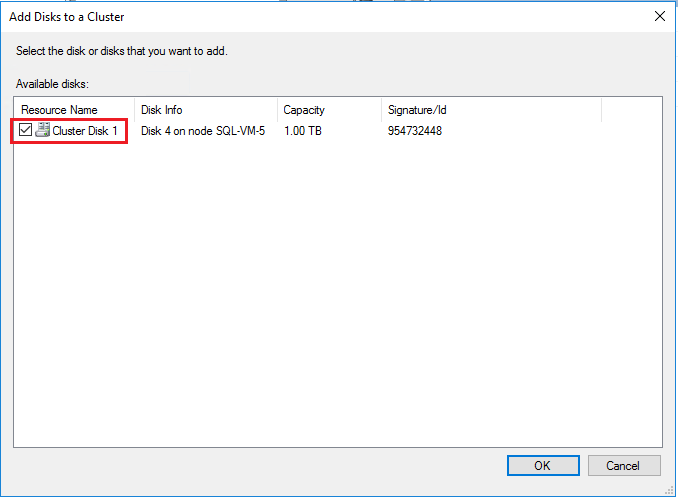
Choose the Azure shared disk in the Add Disks to a Cluster window. Select OK.
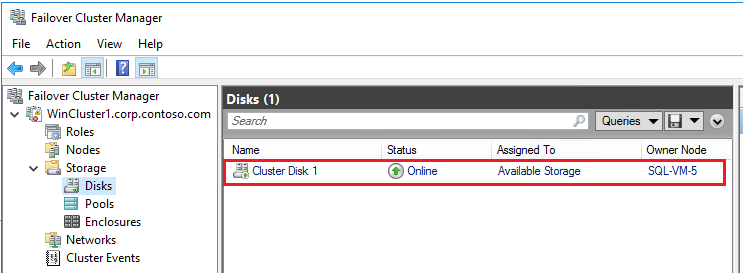
After you add the shared disk to the cluster, you see it in the Failover Cluster Manager.
Create SQL Server FCI
After you configure the failover cluster and all cluster components, including storage, you can create the SQL Server FCI.
Create first node in the SQL FCI
To create the first node in the SQL Server FCI, follow these steps:
Connect to the first virtual machine by using Bastion.
In Failover Cluster Manager, make sure that all core cluster resources are on the first virtual machine. If necessary, move the disks to that virtual machine.
If the version of the operating system is Windows Server 2019 and you created the Windows Cluster by using the default Distributed Network Name (DNN), the FCI installation for SQL Server 2017 and earlier versions fails with the error
The given key was not present in the dictionary.During installation, SQL Server setup queries for the existing Virtual Network Name (VNN) and doesn't recognize the Windows Cluster DNN. The issue is fixed in SQL Server 2019 and later setup. For SQL Server 2017 and earlier versions, follow these steps to avoid the installation error:
- In Failover Cluster Manager, connect to the cluster, right-click Roles and select Create Empty Role.
- Right-click the newly created empty role, select Add Resource, and select Client Access Point.
- Enter any name and complete the wizard to create the Client Access Point.
- After the SQL Server FCI installation completes, you can delete the role containing the temporary Client Access Point.
Locate the installation media. If the virtual machine uses one of the Azure Marketplace images, find the media at
C:\SQLServer_<version number>_Full.Select Setup.
In SQL Server Installation Center, select Installation.
Select New SQL Server failover cluster installation. Follow the instructions in the wizard to install the SQL Server FCI.
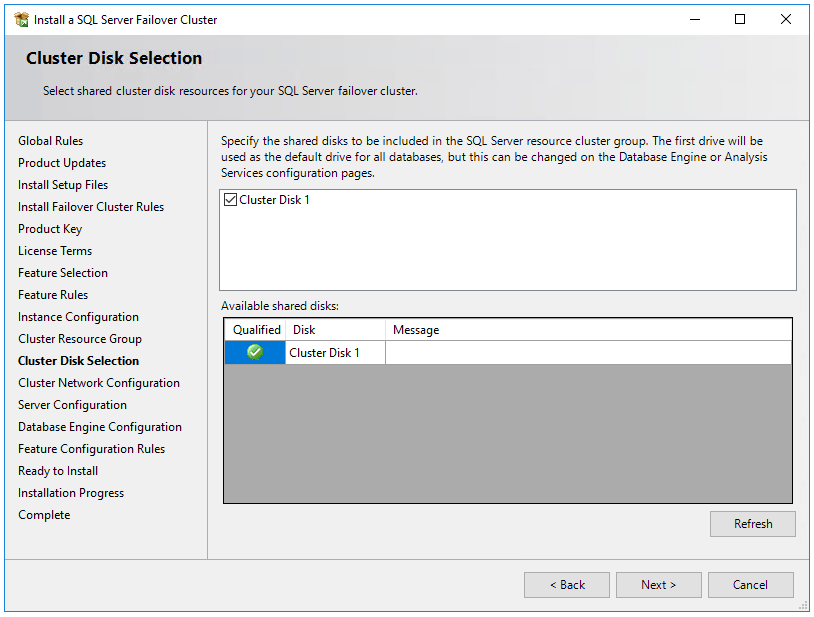
On the Cluster Disk Selection page, select all the shared disks that you attached to the VM.
On the Cluster Network Configuration page, the IP you provide varies depending on whether you deployed your SQL Server VMs to a single subnet or multiple subnets.
- For a single subnet environment, provide the IP address that you plan to add to the Azure Load Balancer.
- For a multi-subnet environment, provide the secondary IP address in the subnet of the first SQL Server VM that you previously designated as the IP address of the failover cluster instance network name:

On the Database Engine Configuration page, ensure the database directories are on the Azure shared disks.
After you complete the instructions in the wizard, setup installs the SQL Server FCI on the first node.
Add extra nodes to the SQL FCI
To add an extra node to the SQL Server FCI, follow these steps:
After the FCI installation finishes on the first node, connect to the second node by using Bastion.
Open SQL Server Installation Center, and then select Installation.
Select Add node to a SQL Server failover cluster. Follow the instructions in the wizard to install SQL Server and add the node to the FCI.
For a multi-subnet scenario, in Cluster Network Configuration, enter the secondary IP address in the subnet of the second SQL Server VM subnet that you previously designated as the IP address of the failover cluster instance network name.

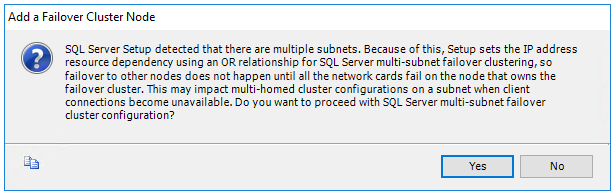
After selecting Next in Cluster Network Configuration, setup shows a dialog box indicating that SQL Server Setup detected multiple subnets. Select Yes to confirm.
After you complete the instructions in the wizard, setup adds the second SQL Server FCI node.
Repeat these steps on any other SQL Server VMs you want to participate in the SQL Server failover cluster instance.
Note
Azure Marketplace gallery images come with SQL Server Management Studio installed. If you didn't use a marketplace image, install the latest version of SQL Server Management Studio (SSMS).
Register with SQL IaaS Agent extension
To manage your SQL Server VM from the portal, register it with the SQL IaaS Agent extension.
Note
At this time, SQL Server failover cluster instances on Azure virtual machines registered with the SQL IaaS Agent extension only support a limited number of features available through basic registration, and not those features that require the agent, such as automated backup, patching, Microsoft Entra authentication, and advanced portal management. See the table of benefits to learn more.
Register a SQL Server VM with PowerShell (-LicenseType can be PAYG or AHUB):
# Get the existing compute VM
$vm = Get-AzVM -Name <vm_name> -ResourceGroupName <resource_group_name>

# Register SQL VM with SQL IaaS Agent extension
New-AzSqlVM -Name $vm.Name -ResourceGroupName $vm.ResourceGroupName -Location $vm.Location `
   -LicenseType <license_type>
Configure connectivity
If you deployed your SQL Server VMs in multiple subnets, skip this step. If you deployed your SQL Server VMs to a single subnet, configure an additional component to route traffic to your FCI. You can configure a virtual network name (VNN) with an Azure Load Balancer, or a distributed network name for a failover cluster instance. Review the differences between the two and then deploy either a distributed network name or a virtual network name and Azure Load Balancer for your failover cluster instance.
Limitations
- MSDTC isn't supported on Windows Server 2016 and earlier.
Limited extension support
At this time, SQL Server failover cluster instances on Azure virtual machines registered with the SQL IaaS Agent extension only support a limited number of features available through basic registration, and not those that require the agent, such as automated backup, patching, Microsoft Entra authentication and advanced portal management. See the table of benefits to learn more.
If your SQL Server VM has already been registered with the SQL IaaS Agent extension and you've enabled any features that require the agent, you need to delete the extension from the SQL Server VM by deleting the SQL virtual machine resource for the corresponding VMs, and then registering it with the SQL IaaS Agent extension again. When you're deleting the SQL virtual machine resource by using the Azure portal, clear the check box next to the correct virtual machine to avoid deleting the virtual machine.
Related content
If Azure shared disks aren't the right FCI storage solution for you, consider creating your FCI by using premium file shares or Storage Spaces Direct.
To learn more, see: