Bilješka
Pristup ovoj stranici zahtijeva provjeru vjerodostojnosti. Možete pokušati da se prijavite ili promijenite direktorije.
Pristup ovoj stranici zahtijeva provjeru vjerodostojnosti. Možete pokušati promijeniti direktorije.
Tip
Microsoft Fabric Data Warehouse is an enterprise scale relational warehouse on a data lake foundation, with a future-ready architecture, built-in AI, and new features. If you're new to data warehousing, start with Fabric Data Warehouse. Existing dedicated SQL pool workloads can upgrade to Fabric to access new capabilities across data science, real-time analytics, and reporting.
In this article, you learn to disable geo-backups for your dedicated SQL pool (formerly SQL DW) in the Azure portal.
Disable geo-backups through Azure portal
Follow these steps to disable geo-backups for your dedicated SQL pool (formerly SQL DW):
Note
If you disable geo-backups, you will no longer be able to recover your dedicated SQL pool (formerly SQL DW) to another Azure region.
- Disabling geo-backup results in the deletion of all existing geo-backups associated with the instance.
- Once geo-backup is disabled, you cannot use existing geo-backups.
- If the instance is active at the time of disabling geo-backup, all geo-backups will be deleted.
- If the instance is paused, geo-backups will be deleted upon resuming the instance.
Sign in to your Azure portal account.
Select the dedicated SQL pool (formerly SQL DW) resource where you would like to disable geo-backups.
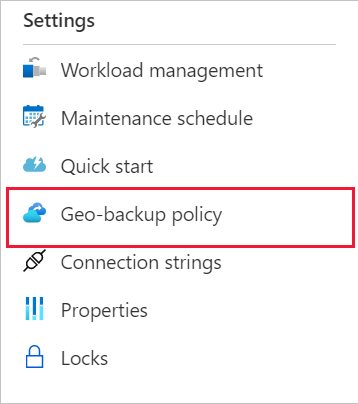
Under Settings in the left-hand navigation panel, select Geo-backup policy.
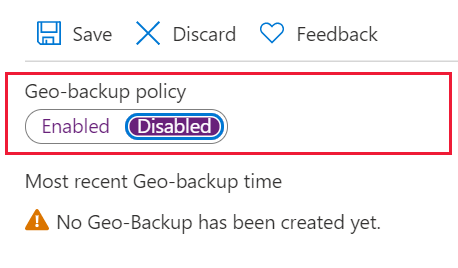
To disable geo-backups, select Disabled.
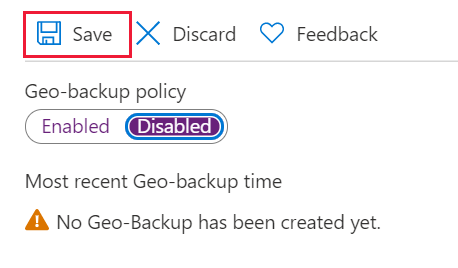
Select Save to ensure that your settings are saved.